
Access the Classlist
Classlist is the place to view your complete course roster in D2L. You can email students and set quiz accommodations.
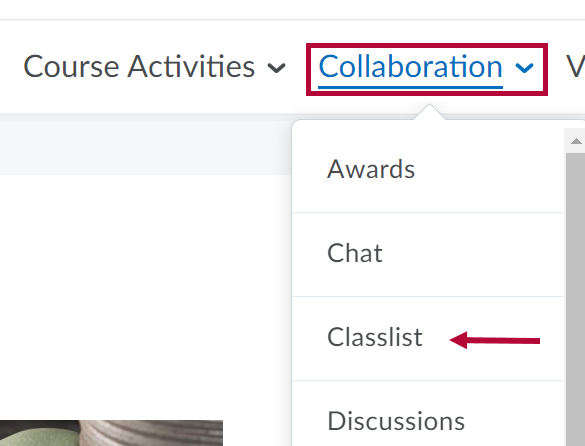
- Click on the [Collaboration] menu, then click [Classlist].
Add or Remove Students
If the Classlist does not match your myLonestar (iStar) Roster, use the Reconcile Your D2L and iStar Rosters tool to correct it.
View by Sections or Groups
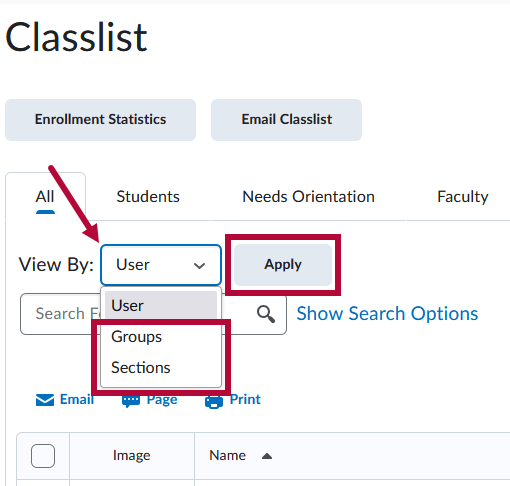
- To view a specific class section or group, click in the View By dropdown list, select [Sections] or [Groups], and click the [Apply] button.
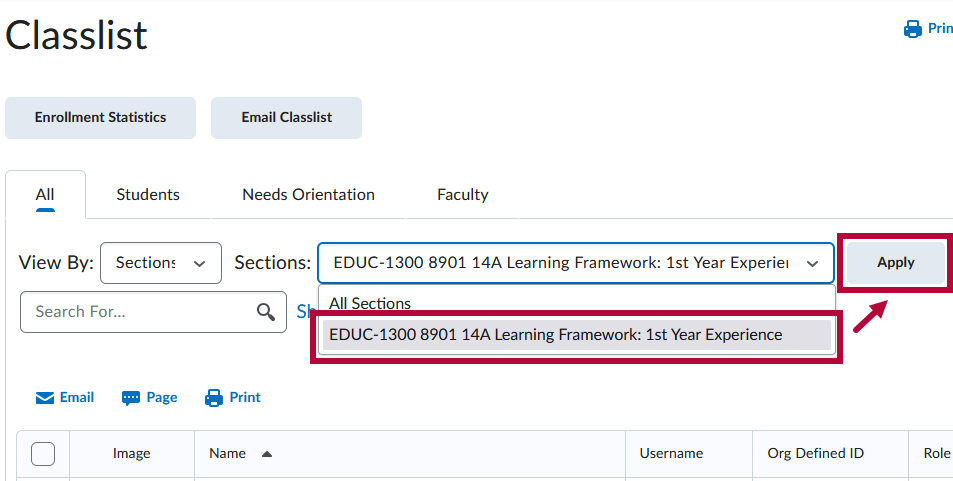
- Then in the Sections or Groups dropdown list, select the [Section Name] or [Group Name] of the section/group which you would like to view, then click [Apply] again.
It is recommended to email students using the Classlist. Instructions are found in Send Email from the Classlist.
Set Accommodations
If you receive an accommodation letter for a student, you can adjust in the Classlist the student's time for all quizzes and the ability to bypass right-click restrictions in quizzes.
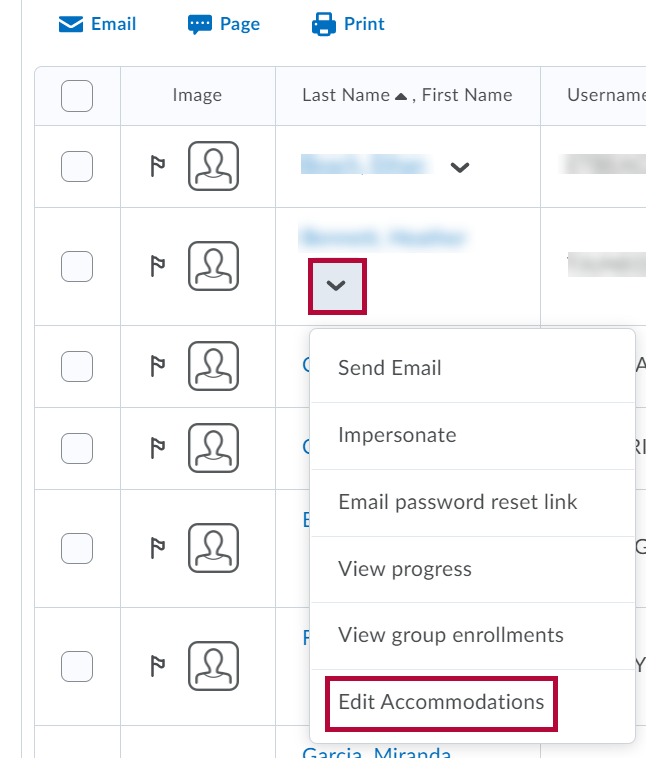
- Use the [dropdown arrow] next to the student's name and click [Edit Accommodations].
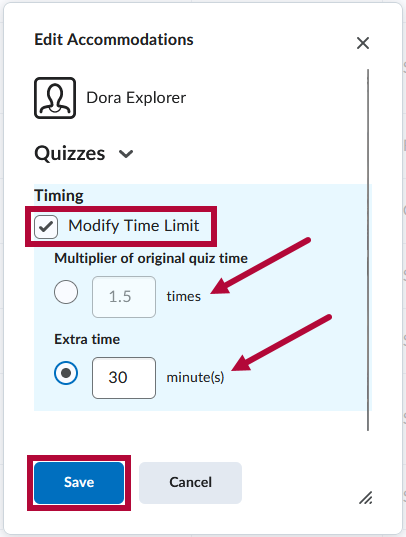
- Select the accommodation options. Time Limit modifications can be applied in terms of Quiz Time Multipliers (for example, 1.5x quiz time) or Extra Time (for example, an additional 30 minutes) on every quiz in a course. Click [Save] when you are done.
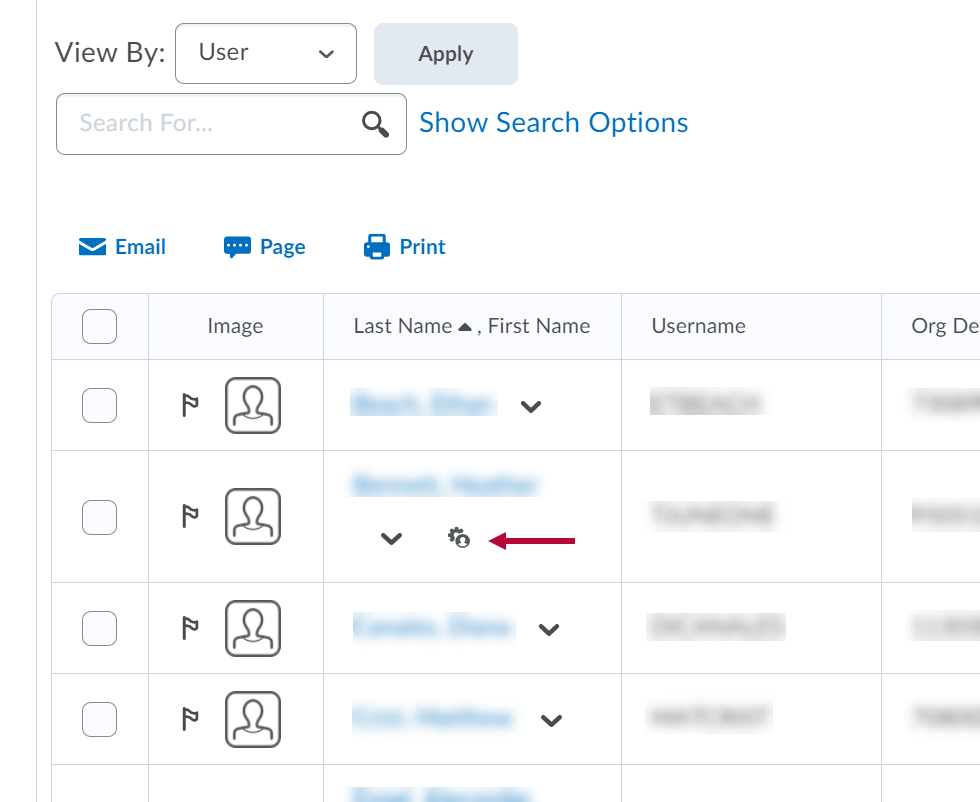
- Once granted, these accommodations apply to all quiz activities in a course for that learner and a symbol indicating accommodations are set for that student appears beside their name.
NOTE: Quiz-specific special access can overwrite an accommodation for any user on a quiz-by-quiz basis. When you overwrite an accommodation and then click [Save], a warning describing the impact of overwriting the accommodation appears.