
To access the form, click the button under Ready to fill out the form? at the bottom of the page.
Alternatively, you can access this form by selecting [VTAC Self-Service Forms] in the upper-left navigation menu, then choose the appropriate form from the list.
The Course Reset Request Form records your consent for Online Services (VTAC Support) to reset your selected D2L course. A Course Reset returns the course to an empty shell, which is useful when incorrect components are copied in or when major changes need to be undone without creating a new course and re-enrolling users. Please note that after submitting the Course Reset Request Form, the Online Services (VTAC Support) will need some time to process and fulfill the request.
 ALERT
ALERT
The Course Reset process permanently deletes all course content and user data, including student submissions and activity records, while leaving enrollment unchanged. This action is fully irreversible and cannot be undone.
Overview of the Course Reset Request Form
The Course Reset Request Form includes the following three sections:
- Assigned Representative
- Find a Course
- Course Review & Acknowledgment
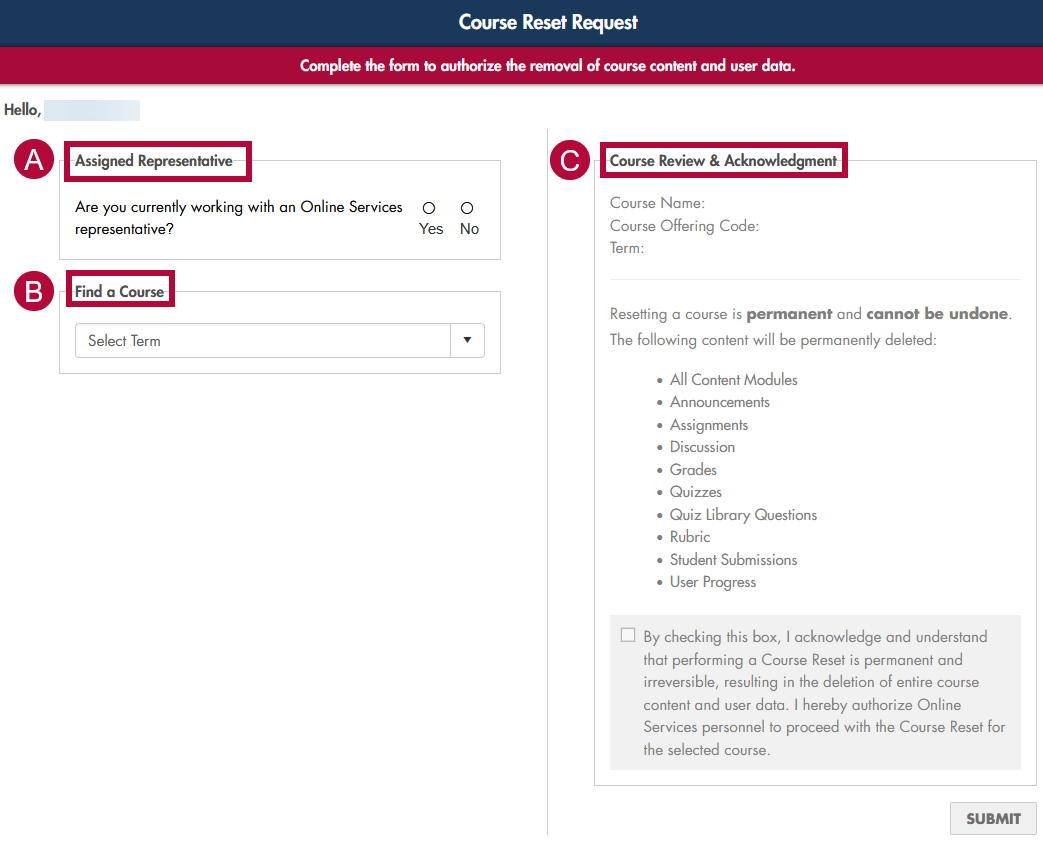
Assigned Representative
In the Assigned Representative section, select [Yes] or [No] whether assistance is being provided by an Online Services representative.
- If [Yes] is selected, enter the representative's name or choose it from the dropdown list.
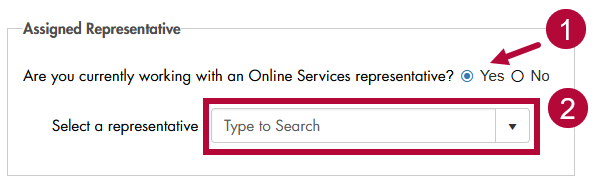
- If [No] is selected, the request will be assigned to the first available representative after the form is submitted.

Find a Course
Under the Find a Course section, select the term from the [Select Term] dropdown, then choose the course you want to reset.

Course Review & Acknowledgement
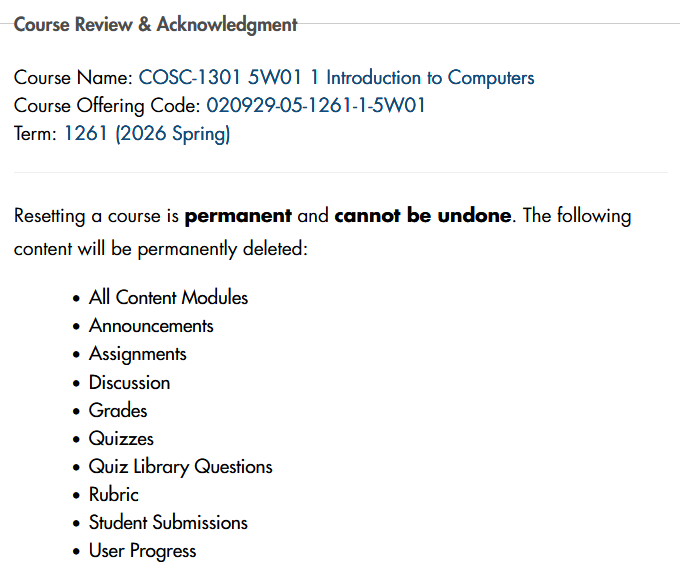
The Course Review & Acknowledgement section provides a summary of the selected course and information regarding a course reset.
-
Once the course is selected, the Course Review & Acknowledgment section unlocks and displays the course information.
-
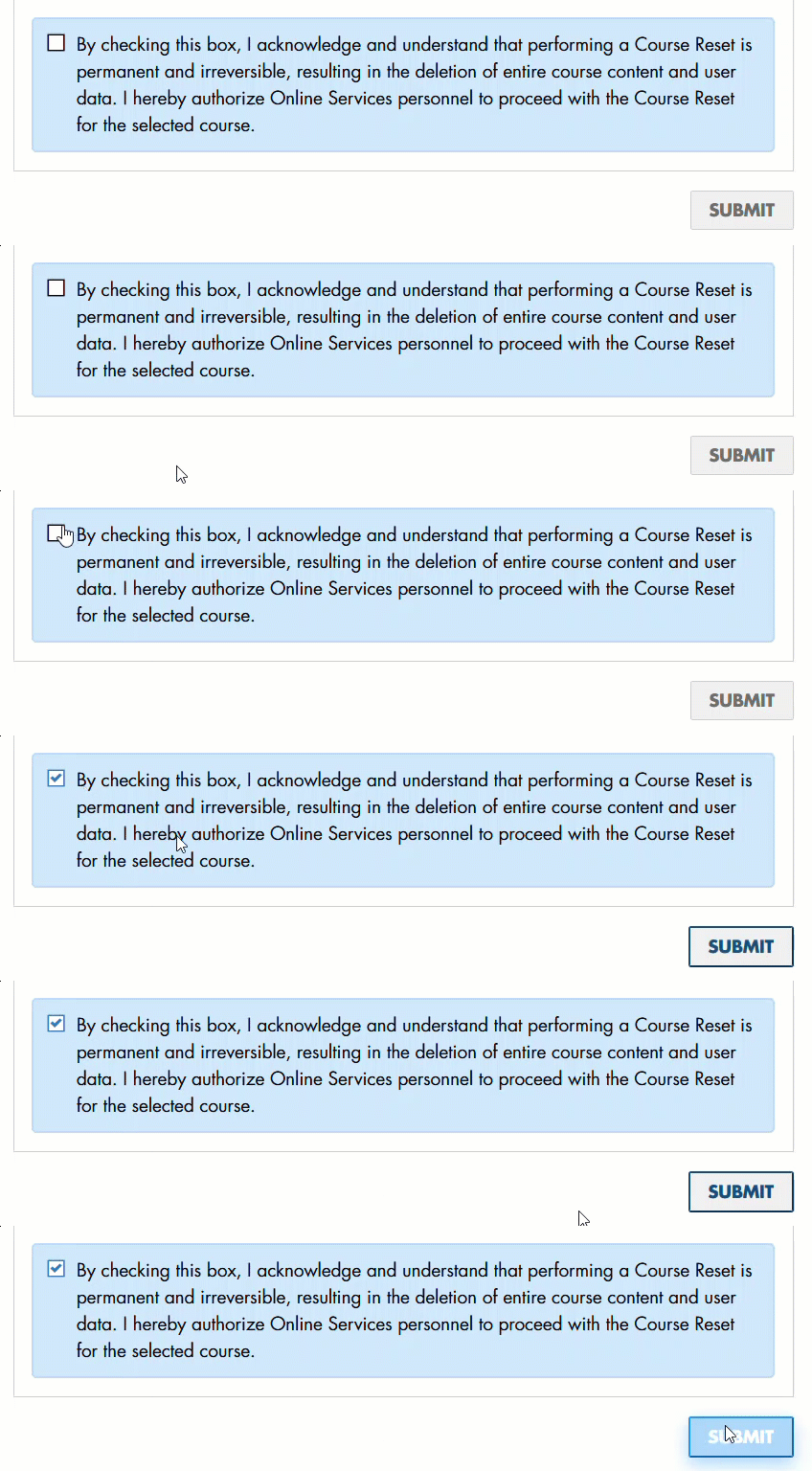
Upon carefully reviewing the course information and course reset details, check the blue [Acknowledgment] box at the bottom, then click [Submit].
- A success window will confirm the request was sent. You can now safely close the tab.
NOTE: Once the Course Reset Request Form has been submitted, please allow some time for the Online Services team to process and complete the request.

If you have any questions about the form, please contact Online Services (VTAC Support) at vtac@lonestar.edu.