
In D2L, assessments include Assignments, Quizzes, and Discussions. In the example below, the assessment being linked is an Assignment.
NOTE: To link an assessment to a specific grade item in the Gradebook, you must do so by linking the assessment to the grade item directly. It is not possible to create this connection from within the Gradebook.
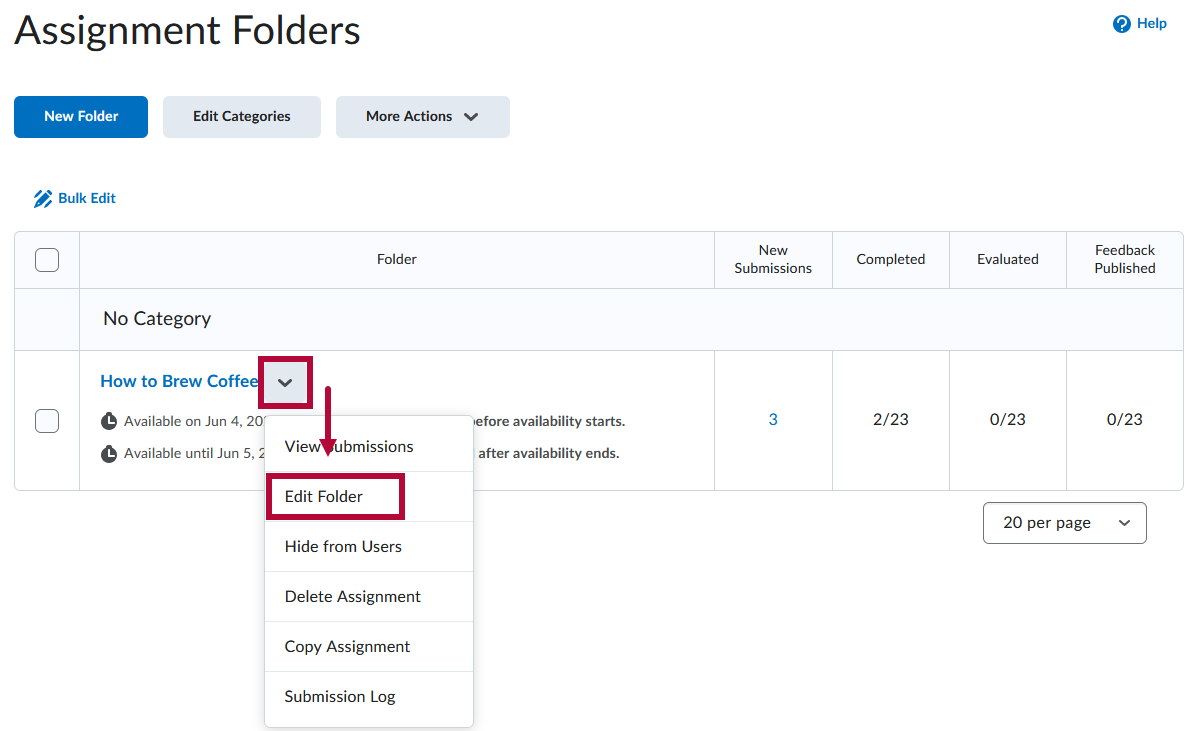
- Head to the Assignment that you wish to link to a Grade Item. Click on the drop-down menu and select [Edit Folder].
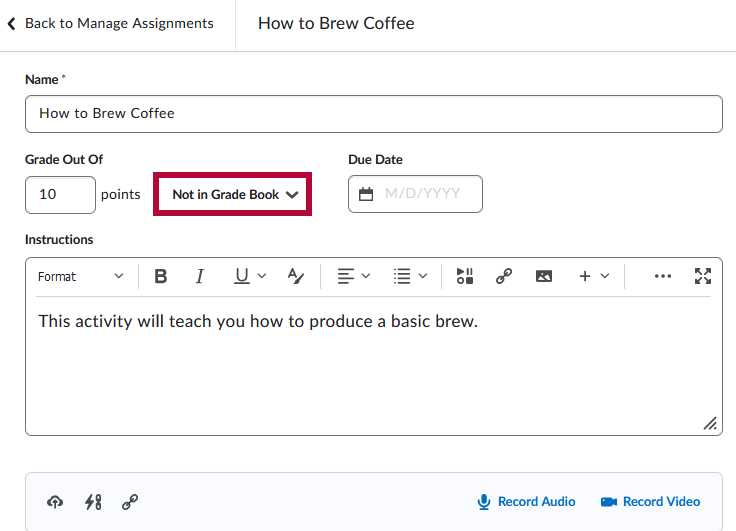
- Currently since the assignment is not linked to any grade item. the box below should show [Not in Grade Book].
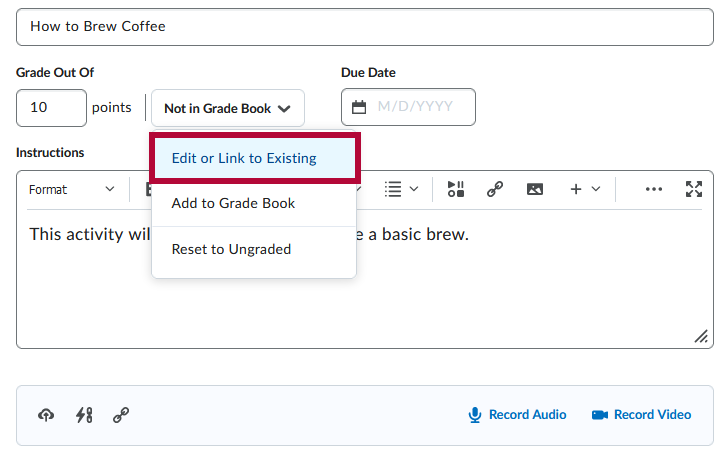
- For best practice, it is advised to Create the Grade Item in the Gradebook first. In this example, we are linking the assignment to an existing Grade Item. Select [Edit or Link to Existing].
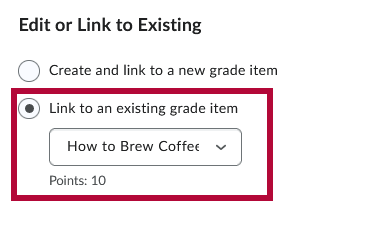
- Click on [Link to an existing grade item], select the existing grade item you want to link to, then select [OK] at the bottom.
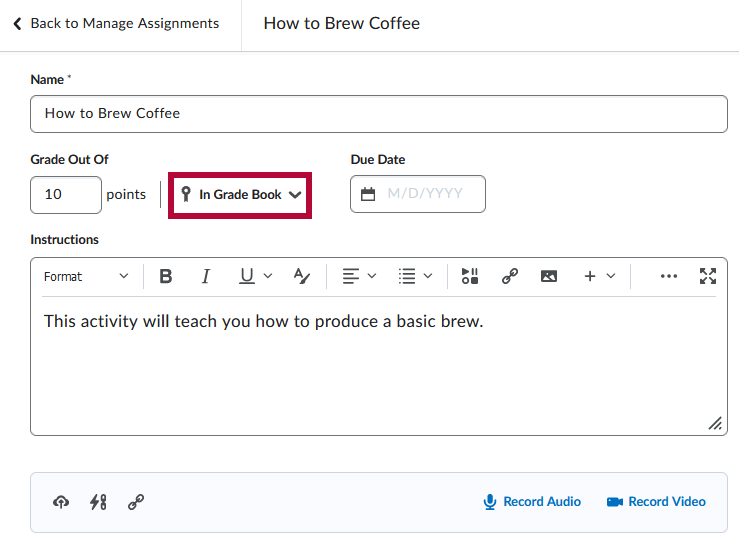
- When done, this box should now show [In Grade Book]. The assignment is now linked with a grade item in the Gradebook. The ribbon icon indicates that the Assessment is now linked with a Grade Item.
D2L Brightspace Tutorials:
How to Associate an Activity with a Grade Item