
The Microsoft Teams Widget integrates Microsoft Teams with D2L Brightspace, providing a centralized space for course communication, meetings, file sharing, and collaboration. Once added to a course, instructors can create and manage a Course Team that stays synchronized with the D2L Classlist and supports ongoing interaction throughout the semester.
Create and Activate a Course Team
Follow the steps below to create a Course Team from the Microsoft Teams Widget and activate it for student access.
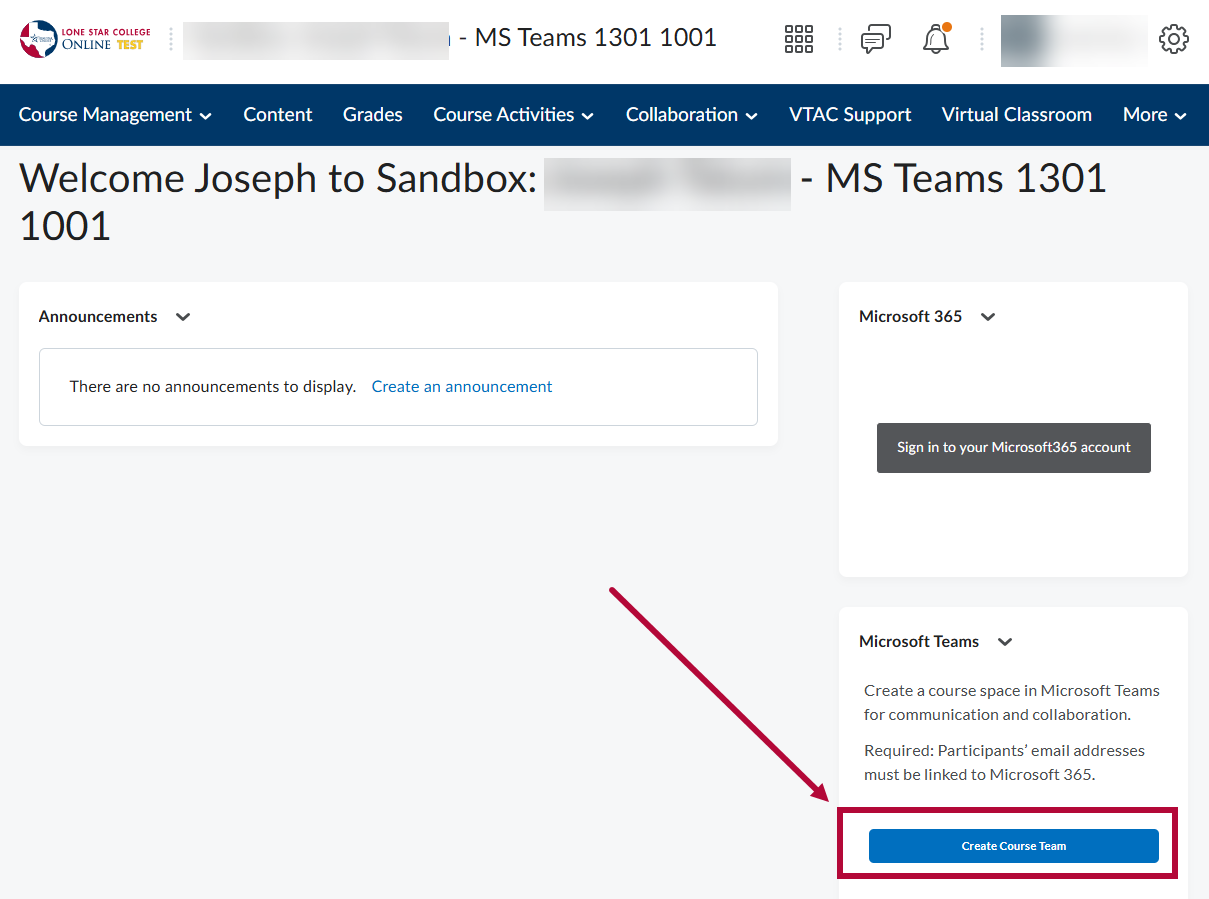
- Select [Create Course Team] within the Microsoft Teams Widget.
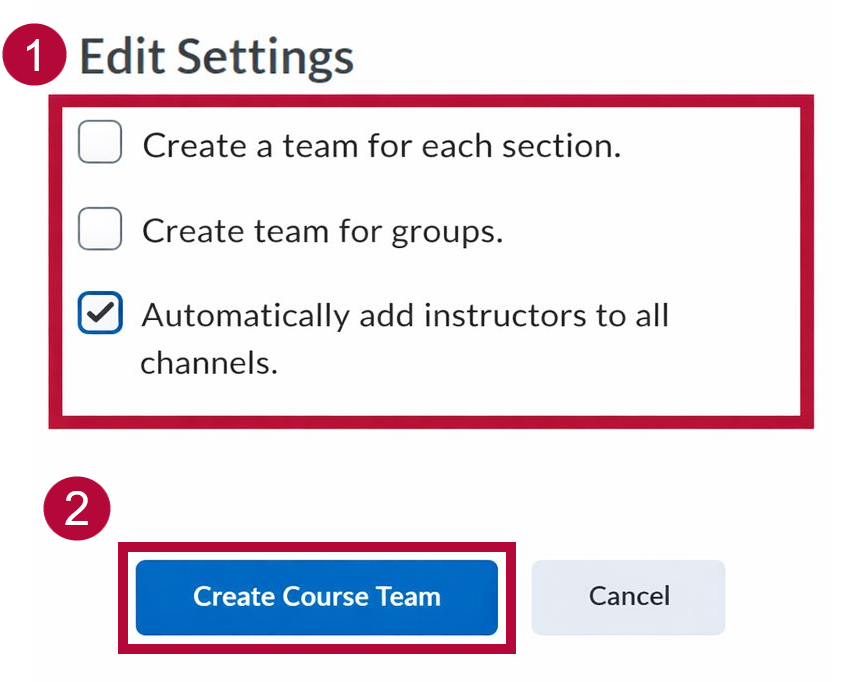
- Choose the settings for your team. These settings can be updated later as well. When finished, select [Create Course Team].
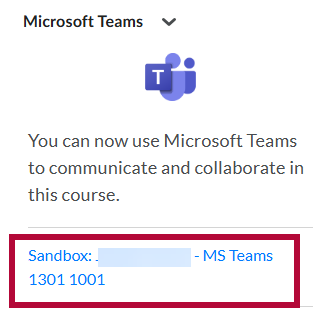
- After a brief processing period, your Course Team will be created. Select the [Course Name] link within the widget to open the newly created Course Team.
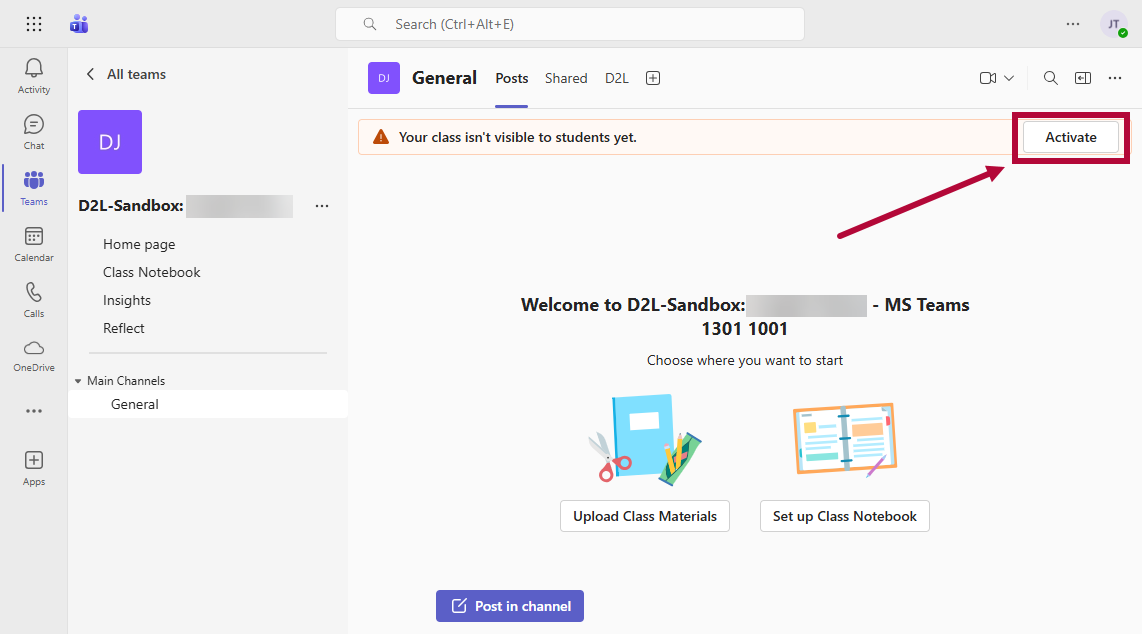
- Your Course Team has been created. You may now edit the Course Team as needed. When you are ready to allow student access, select [Activate].
Teams FAQs
- Will students be automatically added or removed from my Course Team?
Yes. The Microsoft Teams and D2L integration automatically synchronizes your D2L Classlist with the Course Team every night. You do not need to manually manage enrollment changes.
- Can I create Teams for D2L Groups?
Yes. If your course uses D2L Groups, enable [Create Teams for groups] in the Teams Widget Settings to automatically create a Team for each group.
- Can I use Microsoft Teams on my phone?
Yes. You can communicate with students using the Microsoft Teams mobile app, available for both iOS and Android devices.
- What happens to my Course Team when the course ends?
The Course Team is automatically archived 30 days after the D2L Course End Date. You can still view the Team if needed, but it will be removed from your list of active Teams.
- Can I post to a Teams channel using email?
Yes. From a channel's settings, click [Get Email Address] to send a message to the channel directly from your email inbox. Students will see the message as a post within the channel.
- How is my Course Team named?
By default, Course Teams use the format D2L-CourseName. For example, a course named EDUC-1301 1001 will create a Team named D2L-EDUC-1301 1001.
- How do I change the name of my Course Team?
You can change the Team name and default image under [Manage Team] → [Settings].
- Can I send direct messages to students?
Yes. You can send quick direct messages to individual students using Insights or Reflect within Teams.
- What happens when I schedule a Teams meeting for my course?
Scheduling a Teams meeting automatically posts the meeting link in the main Teams channel, invites enrolled students, and adds the meeting to your Outlook calendar.
- What is the D2L tab in Microsoft Teams?
The [D2L] tab provides a direct link back to your D2L course for quick access.
- Can I share files with students in Teams?
Yes. You can upload files from your computer or OneDrive directly to the Team's shared folder. Students can access these files under the [Shared] tab in Teams.
Troubleshooting and Support
If you need additional assistance, contact the IT Service Desk at 281.318.HELP (4357).