
At the end of a semester, your grades must be exported from D2L to iStar—your grades do not automatically transfer from D2L. Your students will not get credit for the course if you do not export the grades to iStar. You can easily export your final grades from D2L to iStar where they will become the official grades for the students.
Exporting Grades from D2L to iStar
If 7 days have passed since the Course End Date, grades cannot be added through D2L.
Only letter grades are transferred automatically. If you need to assign a special grade—[Incomplete], [In-Progress], or [Pass/Fail]—or if the student is enrolled in Continuing Education (CE) courses, you must enter those grades manually in iStar.
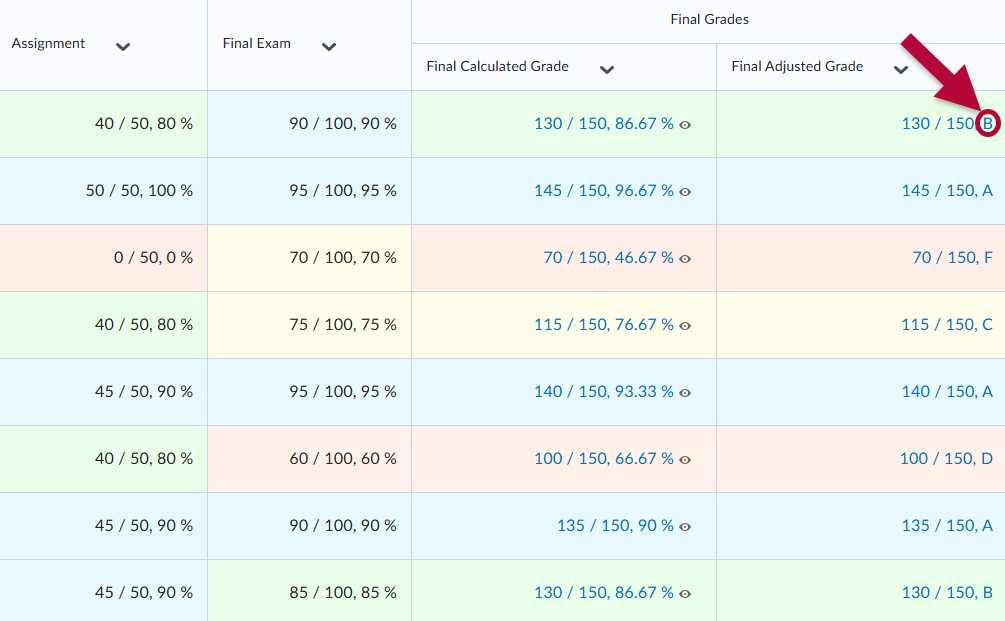
Final Grades are exported from the Final Adjusted Grades column in your D2L course. Please see Use Adjusted Final Grade.
- In your D2L course, click [Grades].

- In the Gradebook, confirm that the Final Adjusted Grades are represented as letters.
-
If the Final Adjusted Grade does not appear as a letter, click the dropdown for [Final Adjusted Grade], then select [Edit].
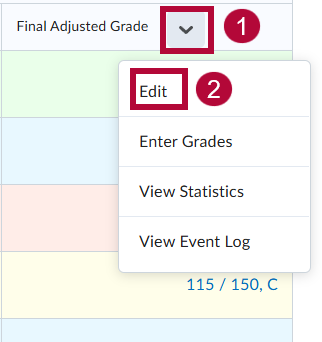
- Under Grade Scheme, select the appropriate Letter Grade Scheme for your course. To verify your course's grading basis, check the Grading Basis column in the Grade Roster in iStar.
- [Letter Grade Scheme (Dev Ed)] - For Developmental Education (Dev Ed) courses.
- [Letter Grade Scheme (GRD Credit)] - For Credit (CR) courses.
- Custom grade schemes created by faculty will also appear here. For instructions on creating one, refer to Create and edit grade schemes.
NOTE: This process does NOT include Pass/Fail, Pass/No-Pass scheme courses, IP (Dev Ed courses), or I (Incomplete).

-
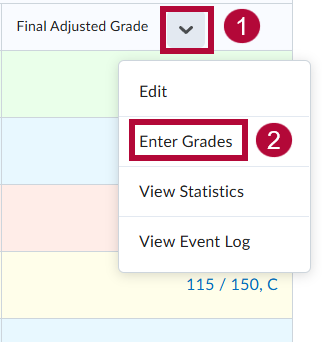
To finish entering grades, click the [dropdown arrow] and select [Enter Grades].
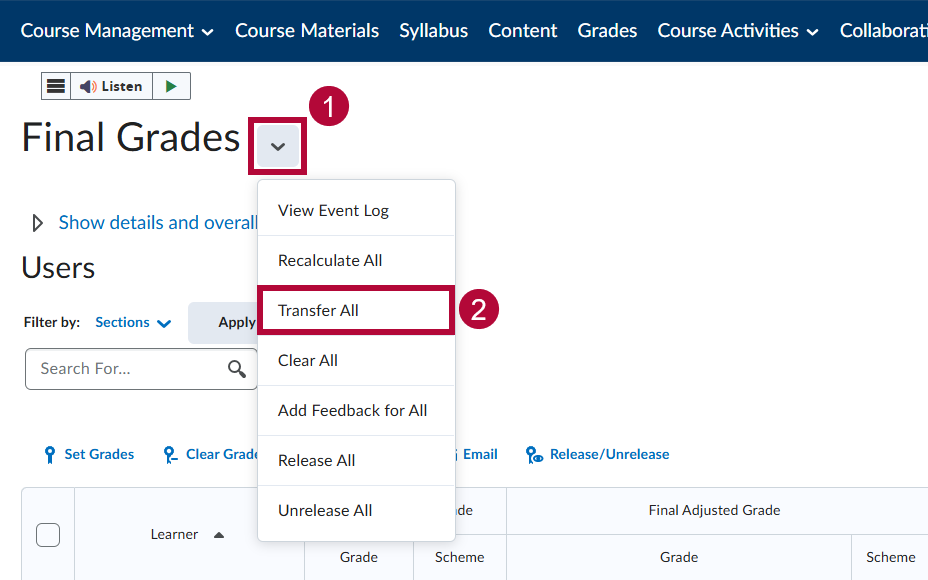
- Located near the top of the screen, click the drop-down arrow next to Final Grades and then select [Transfer All]. The will populate the grades from Final Calculated Grade to Final Adjusted Grade.
-
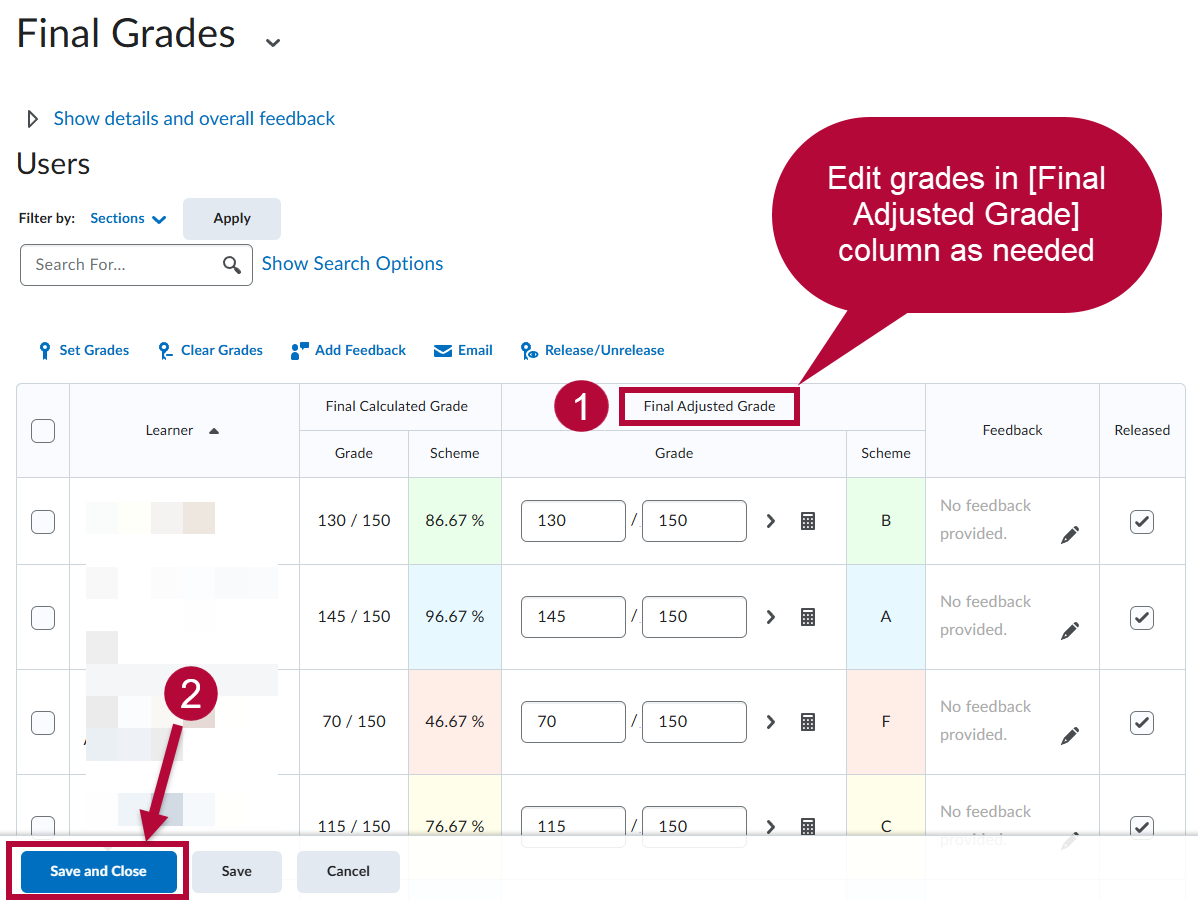
Update grades in the Final Adjusted Grade column as needed, then click [Save and Close].
-
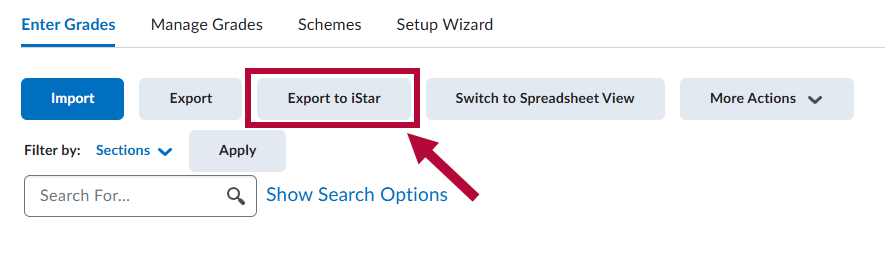
After final changes are complete, click [Export to iStar].
-
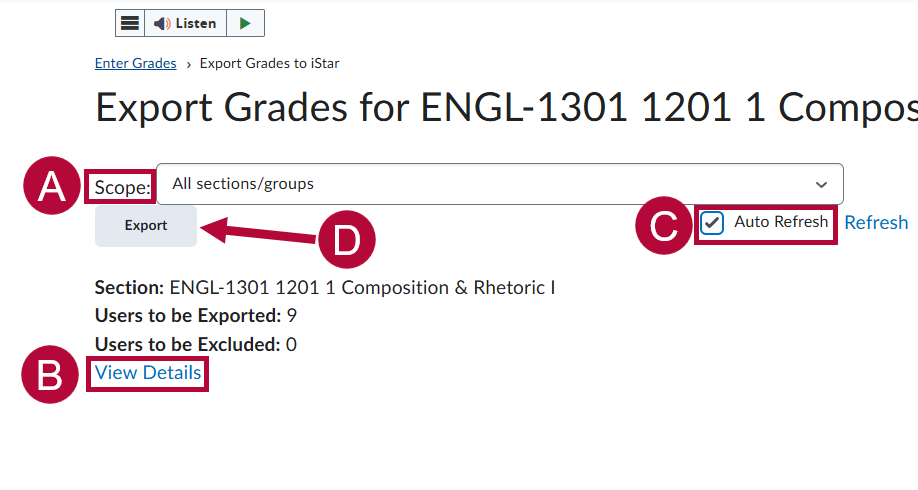
An overview of the Export Grades to iStar page:
- The Scope field defaults to All sections/groups. Use the dropdown to select the appropriate course if needed.
- Click [View Details] to verify the roster before exporting.
- Select [Auto Refresh] so the page updates automatically when the export completes.
-
Click [Export] to submit grades.
NOTE: If any Groups have been created in D2L, you cannot export All sections/groups. You must select specific sections and then click [Export].
ALERT: Do not press [Export] until it is the end of the semester, you have finished working in your D2L Gradebook, and are ready to export the final version of your Final Adjusted Grades to iStar. Do not try to export grades in the middle of the semester.
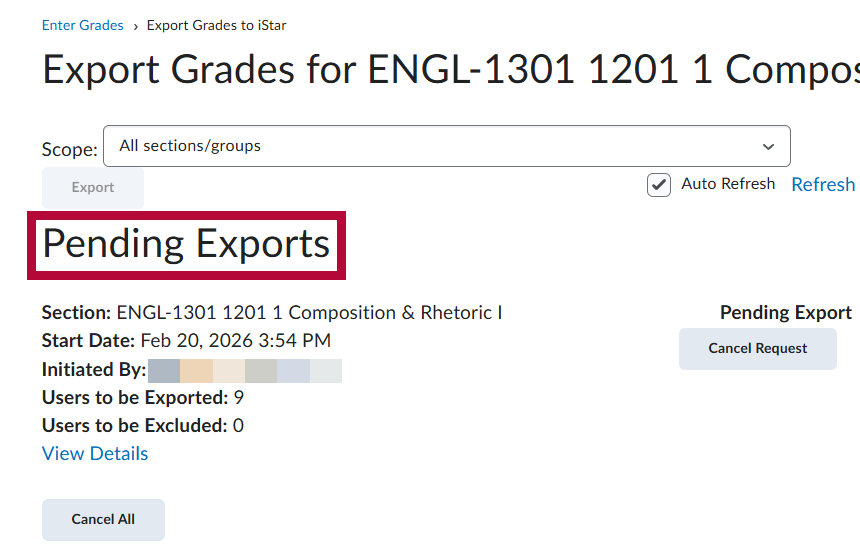
- The export remains pending until it completes.
-
After completion, verify the success message on the right side under Most Recent Exports, then click the [Course Name] link to view details.
NOTE: If you see an error message, open the report to confirm whether the issue is related to a withdrawn student.
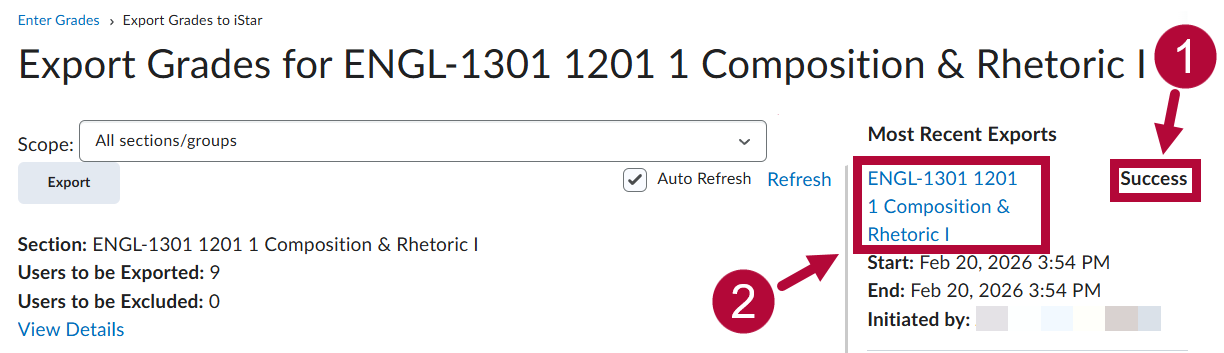
-
The Export Details report will display the result for each student with an explanation noted.
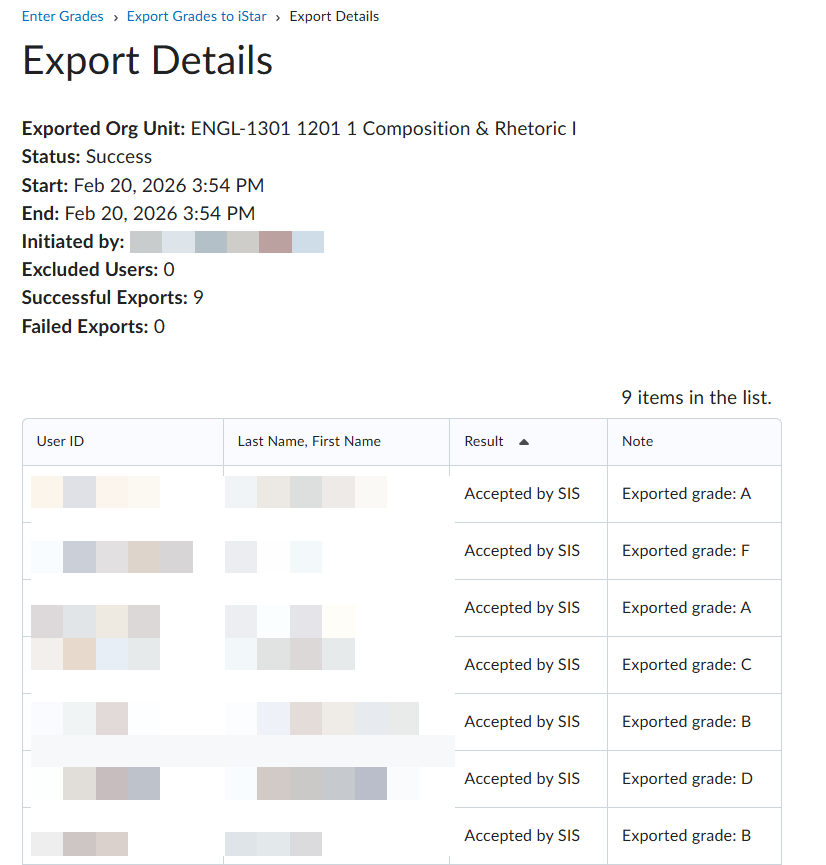
- Common error messages seen in Export Details:
Status Meaning To Be Sent The grade was submitted outside the iStar Grade Window*. Can also appear as a general catch-all when no more specific error applies. Excluded No Final Adjusted Grade exists in the D2L gradebook for this student. Learner not found in iStar Grade Roster The student's enrollment record doesn't match between D2L and iStar. Common with withdrawn students. Grade or grade scheme is not consistent between D2L and iStar The exported grade format doesn't match iStar's allowed schema—either it isn't a letter grade, or the letter isn't a valid iStar selection.
*iStar Grade Window - Begins when Records & Enrollment manually activates the iStar Grade Rosters—typically shortly after the course's Withdrawal date—and closes 7 days after the course's iStar end date. Activation timing may vary.

Verify Exported Grades in iStar
-
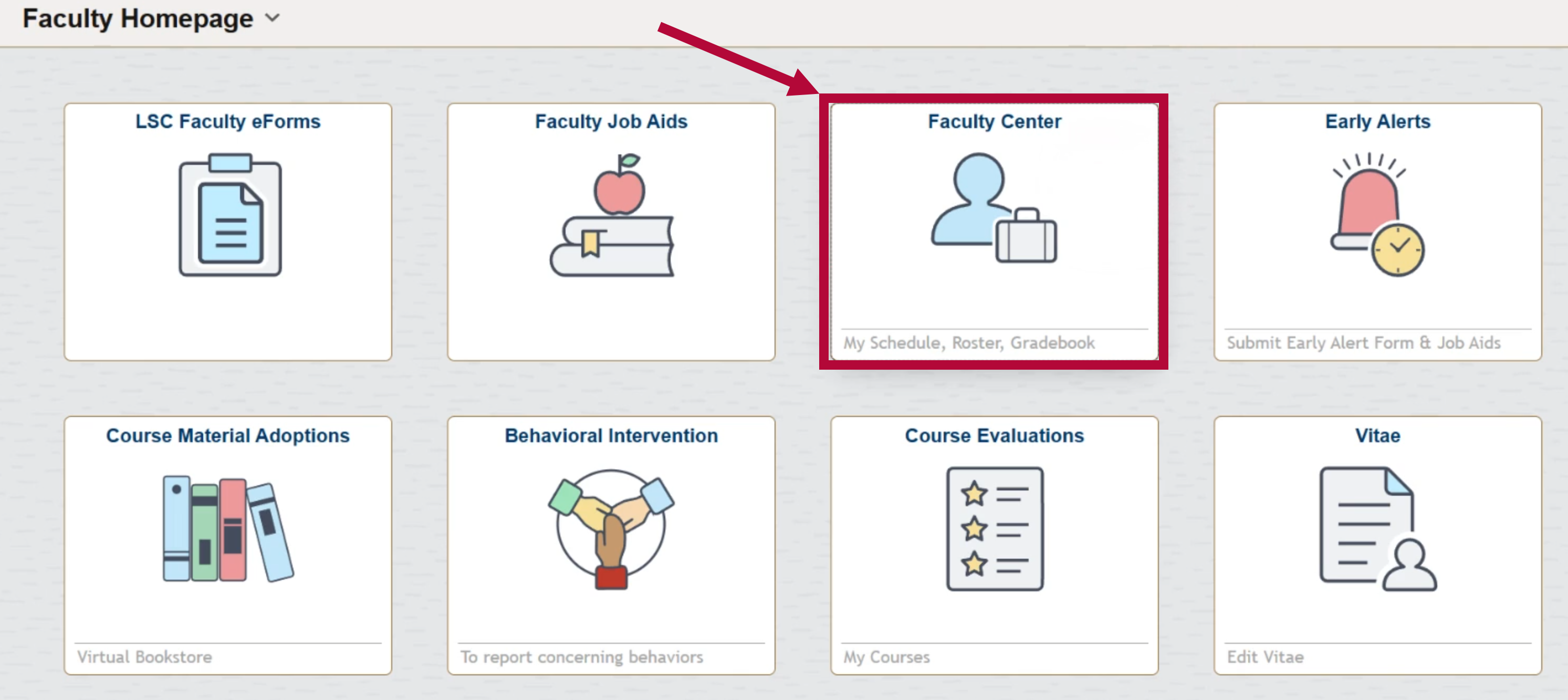
Once the information has been confirmed, log into MyLoneStar. In the Faculty Homepage, click on the [Faculty Center] tile.
-
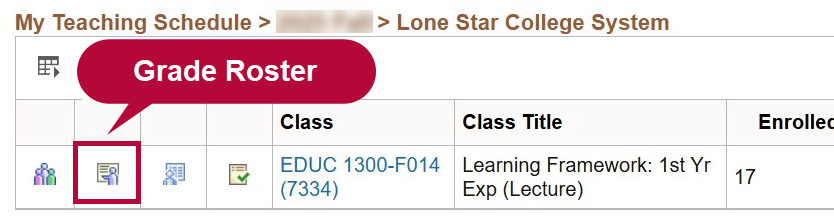
On the My Schedule tab, verify the grades came over by clicking on the [Grade Roster] icon.
-
On the Grade Roster page:
-
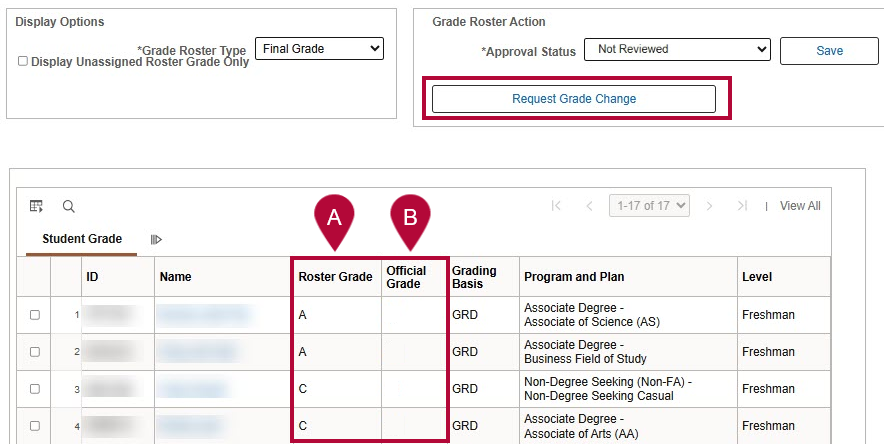
Verify that the grades came over from D2L under the Roster Grade column.
-
If you have just exported your grades from D2L, the Official Grade column will likely be blank. If grades are listed in the Official Grade column, they have already been approved and posted in iStar.
NOTE: Grades are automatically approved/posted in iStar every 2 hours from 8:00 AM CST to 8:00 PM CST. You can still manually post your grades by changing the Approval Status from [Not Reviewed] to [Approved], but it is not required; if you do not change the Approval Status, then the grades will be posted automatically the next time that process runs. Once posted, whether automatically or manually, any further changes to the grade roster will require faculty to submit a Grade Change Request using the Request Grade Change link in iStar.
-
For further assistance, contact the IT Service Desk at 281.318.HELP (4357).