
In YuJa, you can create enhanced audio descriptions that pause video playback to provide detailed scene descriptions, making content more accessible for individuals with visual impairments.
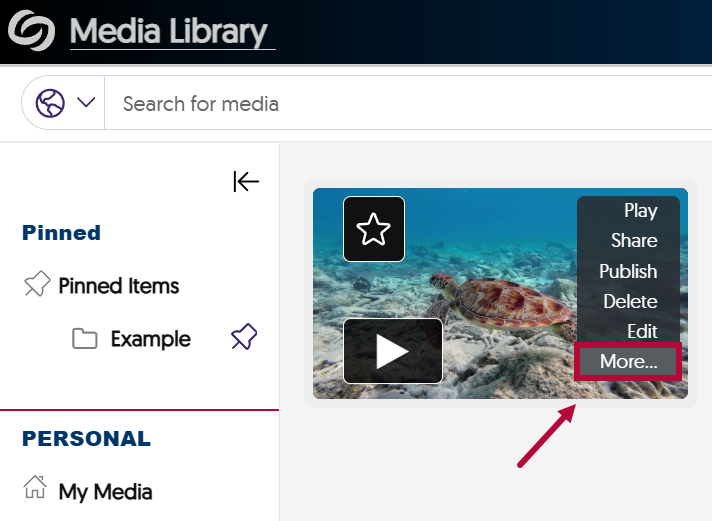
- Hover your mouse over the video you would like to add audio descriptions to and select [More].
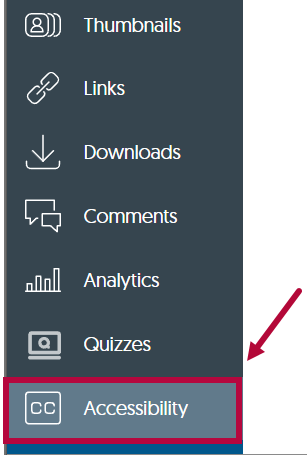
- In the left-side banner, click on [Accessibility].
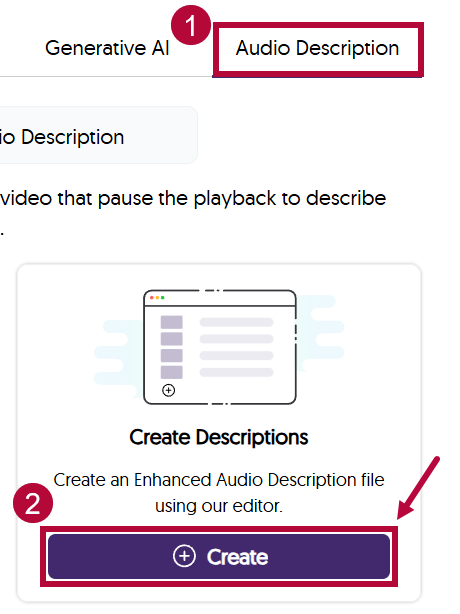
- Navigate to the [Audio Description] tab.
Under Create Descriptions, select [Create].
- Navigate to a specific point in the video and click [Add at timestamp] to add the alternative description. In this example, the timestamp is at 00:10.
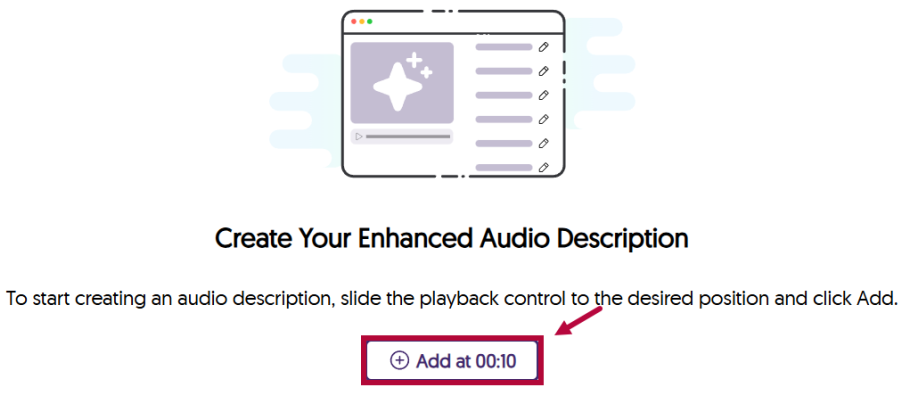
- Insert an enhanced audio description.

