
Online Services does not have access to your Macmillan account. For integration issues or questions, please contact your Macmillan representative, Kerry McDonough, at kerry.mcdonough.contractor@macmillan.com or contact Macmillan Support.
Watch the Star Bundle (VitalSource) & Macmillan Open Lab for Spring 2026
ALERT: The instructions below are for classes that are NOT using the Star Bundle (VitalSource). If you are using the Star Bundle, reach out to Macmillan for assistance setting up your course.
The Macmillan Achieve integration has been enabled for all D2L courses.
Make sure you are NOT logged into Macmillan Achieve. If you opened Achieve previously, please close and re-open your browser to be sure you are not still logged in.
Adding Macmillan Achieve to a D2L Course
This section walks you through the steps to add Macmillan Achieve to your D2L course so students can access required content from within Brightspace.
- From the Navbar, select [Content].

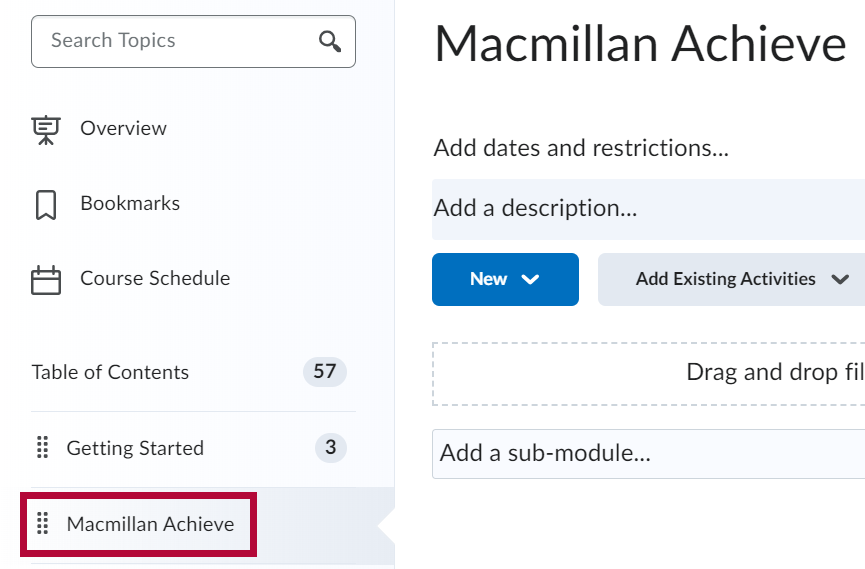
- Select or create the module where you want to insert your Macmillan Achieve content. You can name the module Macmillan Achieve.
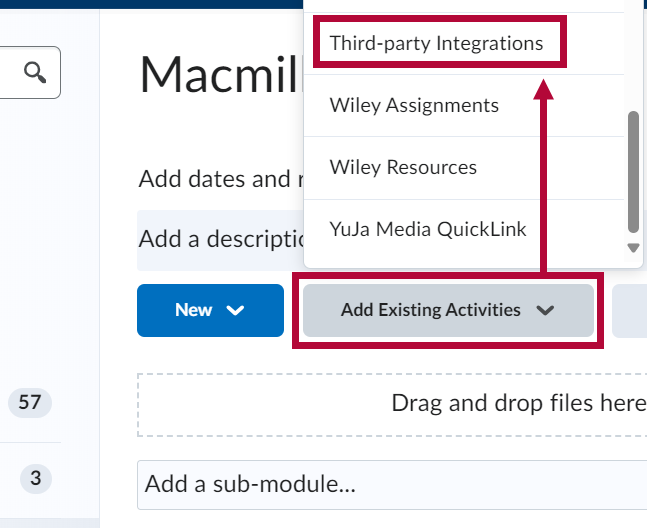
- From the module, select [Add Existing Activities] followed by [Third-party Integrations].
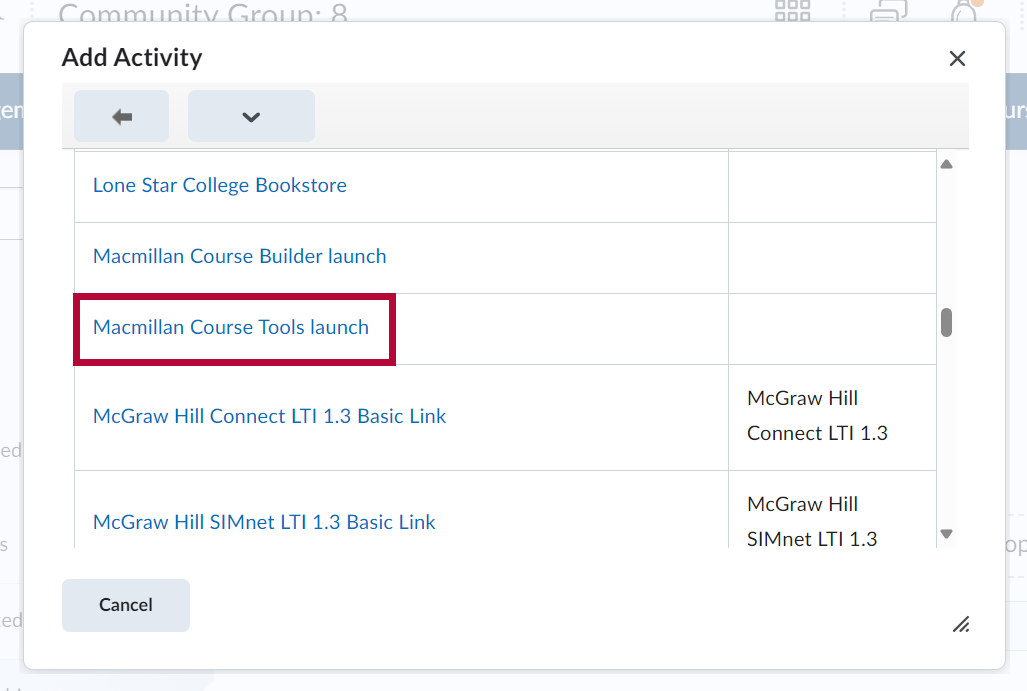
- From the Add Activity window, select [Macmillan Course Tools launch].
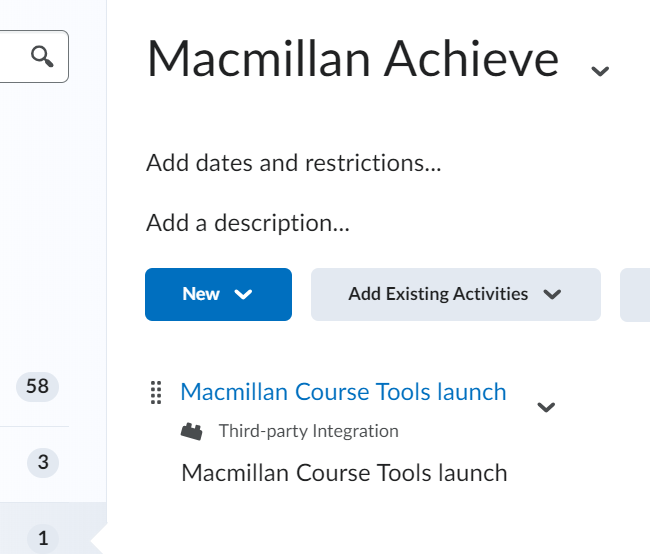
- The Macmillan Course Tools launch integration link will appear.
Linking Macmillan Achieve to a D2L Course
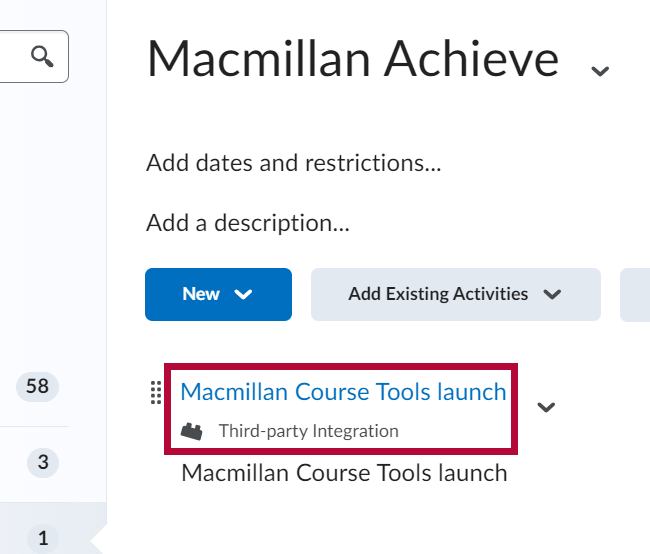
- Select the [Macmillan Course Tools launch] link you added in the previous steps above.
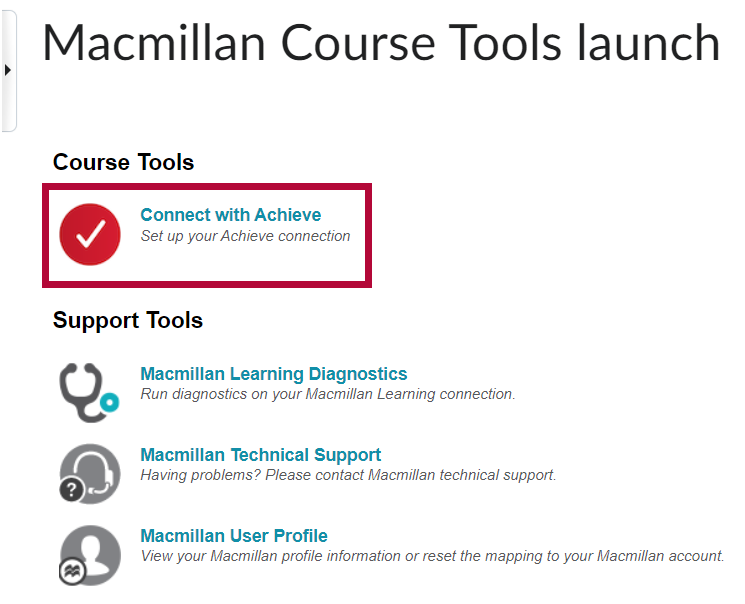
- Select [Connect with Achieve].
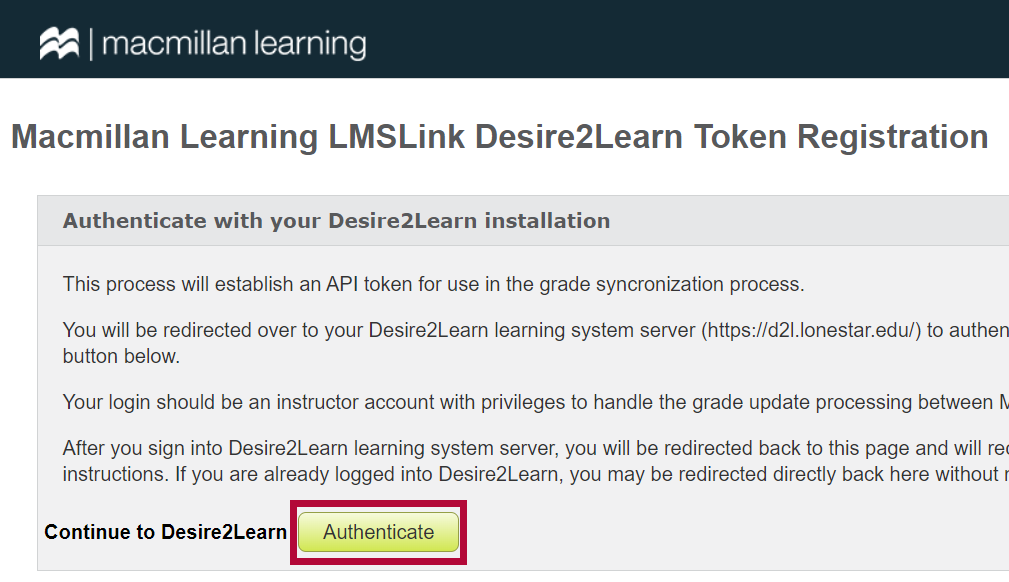
- An authentication message will appear. Select [Authenticate].
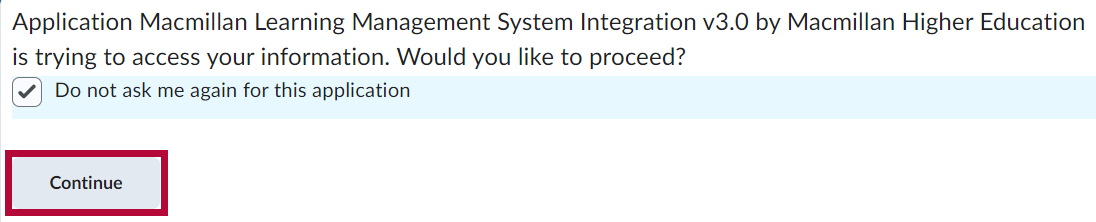
- Select [Do not ask me again for this application] followed by [Continue].
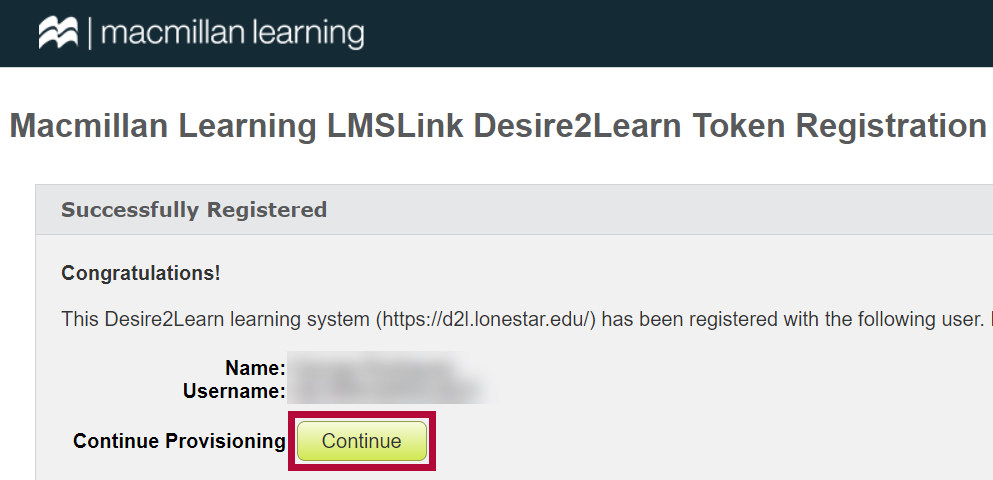
- You should receive a message indicating the registration was successful. Select [Continue].
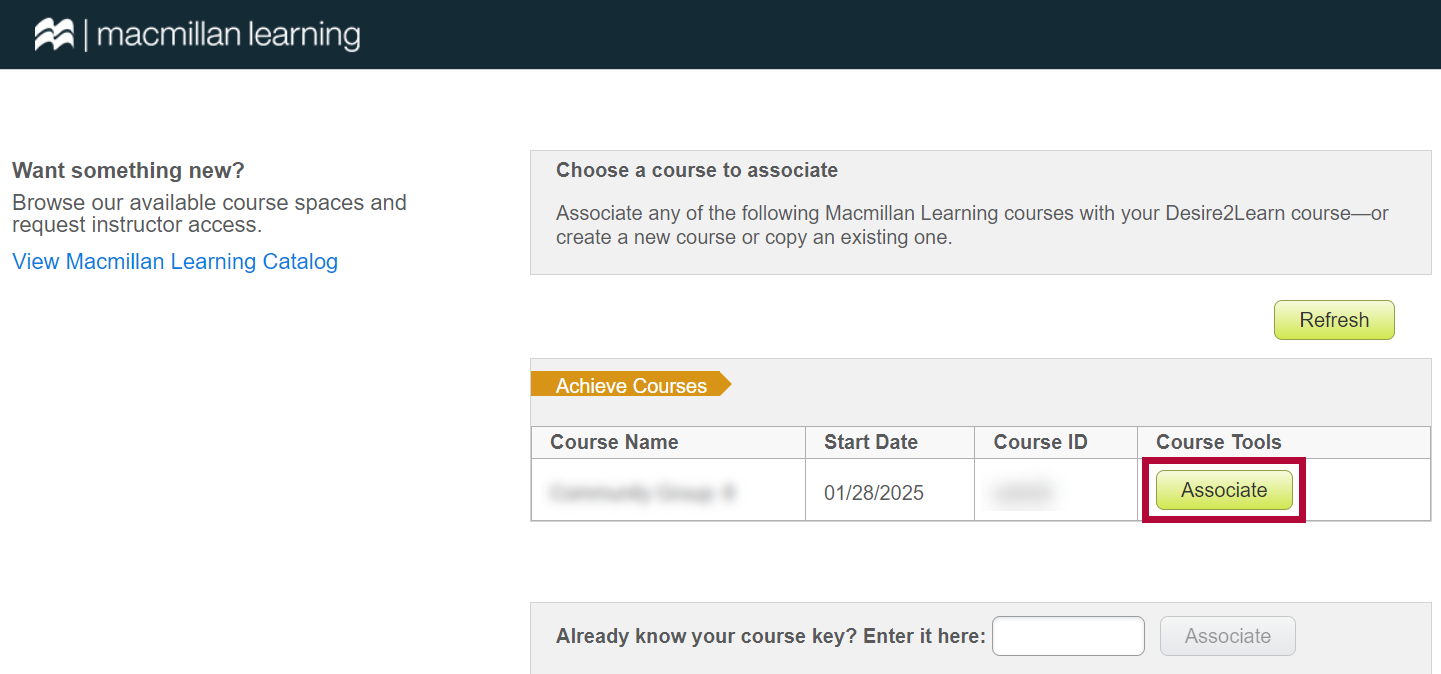
- Locate the course you want to pair and select [Associate].
- Select [Yes, Associate This Course].

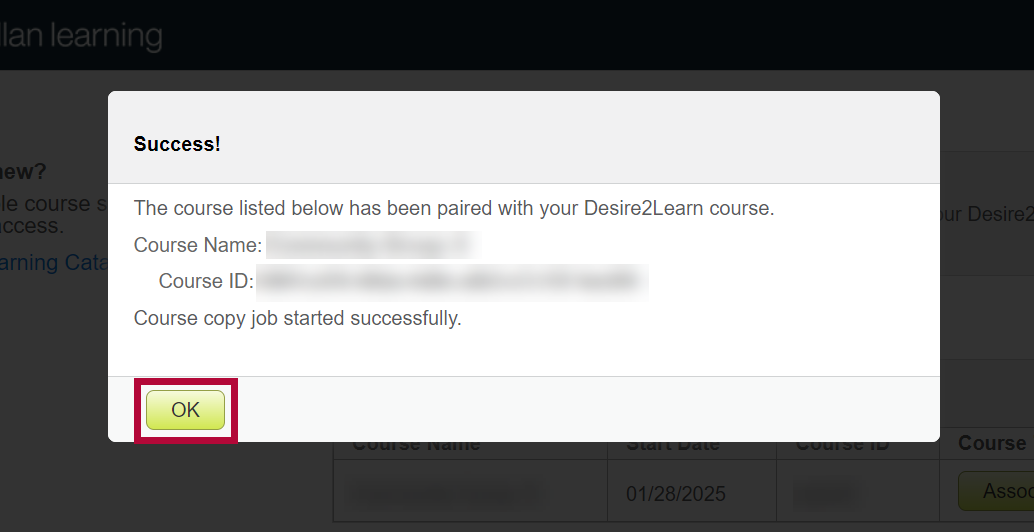
- You should see a success message. Select [OK].
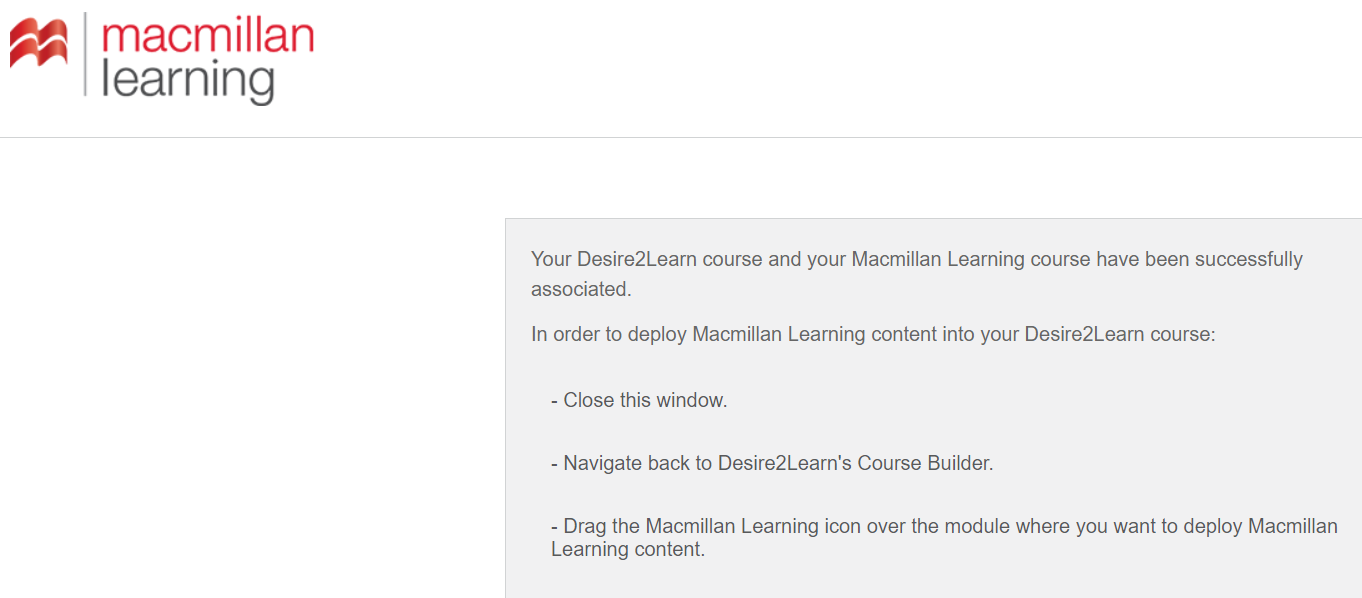
- You will see a message similar to the one below. You may close the window or tab.

Adding Macmillan Content to a D2L Course
For more information about adding Macmillan content to a course, see Macmillan's help article.
Copying a Course with Macmillan Content
For more information about copying a course with Macmillan content, see Macmillan's help article.
- Copy your D2L course.
- Follow the steps above in Linking Macmillan Achieve to a D2L Course.
- Follow the steps in the video below.
NOTE: The video is for Copy a D2L course integrated with LaunchPad, but this process is also similar for Macmillan Achieve.
Additional Support Information
Troubleshooting and Support
If you need additional assistance, contact the IT Service Desk at 281.318.HELP (4357).