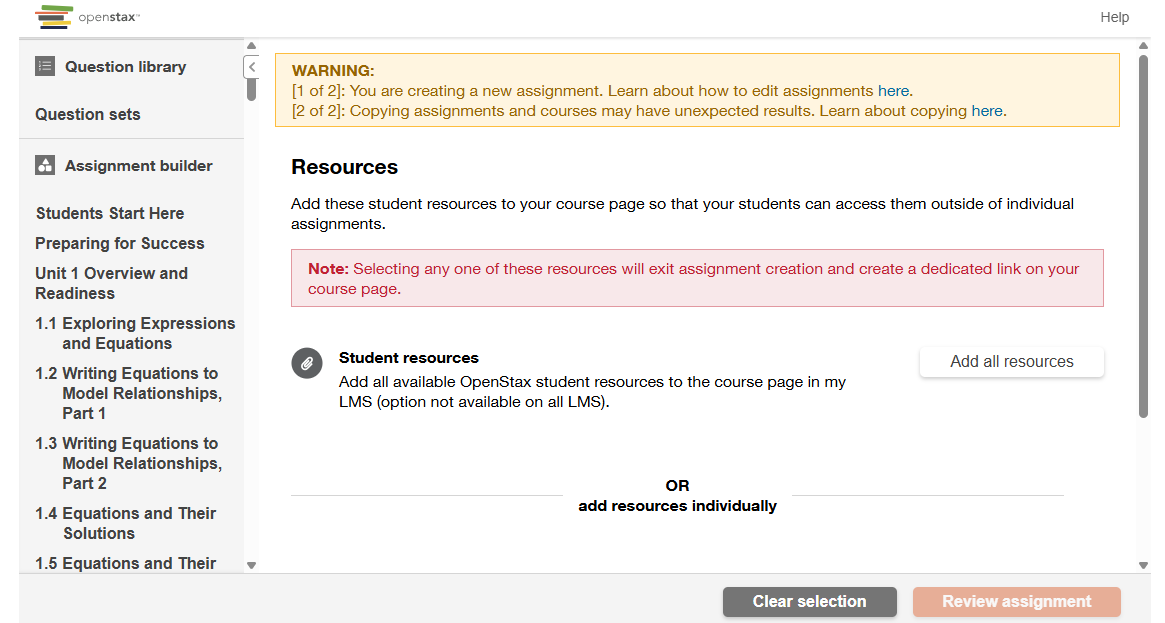
Online Services does not have access to your OpenStax Account. For integration issues or questions, please contact OpenStax Support.
OpenStax Assignable is a new way to enhance the OpenStax experience for you and your students. Assignable empowers instructors to easily assign readings, assessments, and culturally responsive and interactive materials from the OpenStax Resource Library.
- Send an email to VTAC@lonestar.edu and include which courses you intend to use OpenStax Assignable.
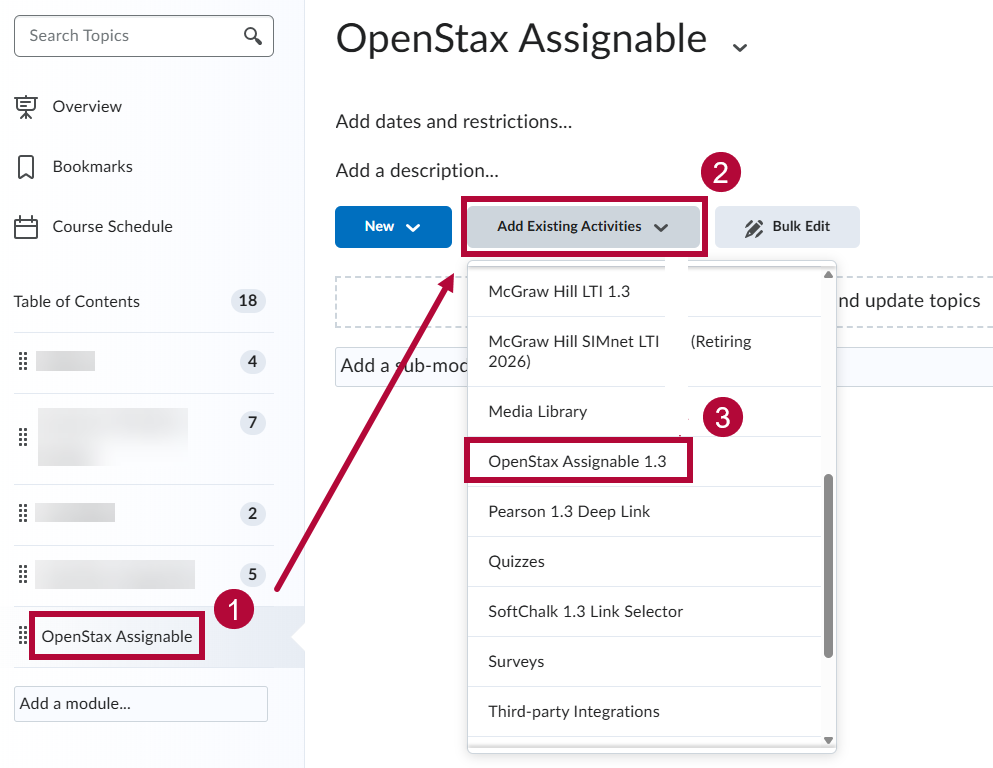
- Once you have received confirmation that VTAC has added your courses, navigate to the Content Module → [Add Existing Activities] → [OpenStax Assignable 1.3].
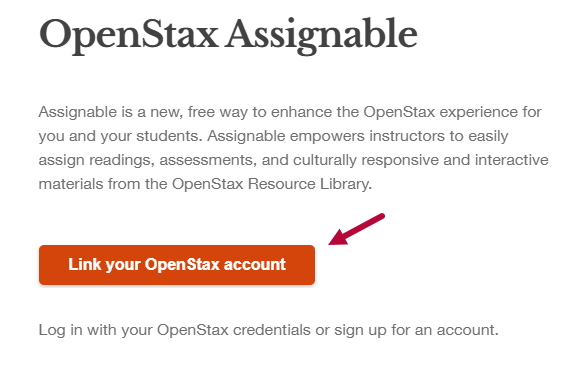
- Select [Link your OpenStax account].
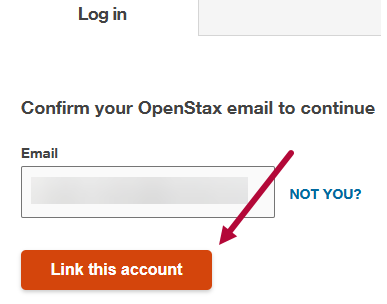
- Select [Link this account] after confirming the LSC email address is correct.
NOTE: If you have never used the OpenStax ecosystem before you will be prompted to create and verify your OpenStax account.
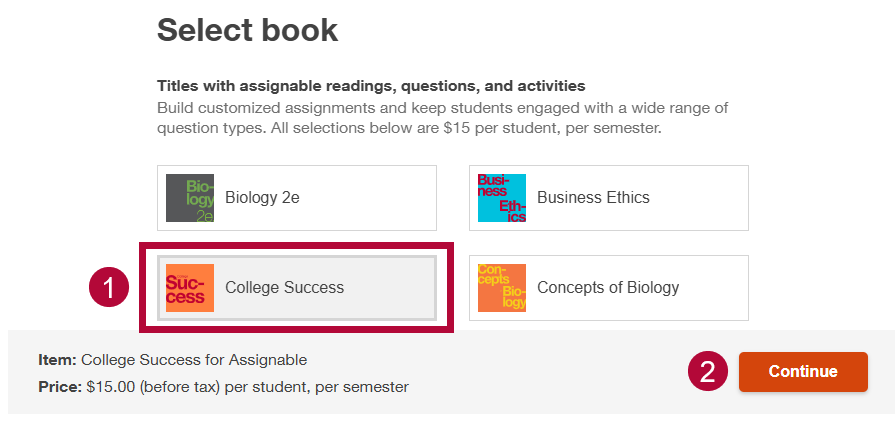
- [Select the textbook] you intend to use and select [Continue]. In the example shown, College Success is selected.
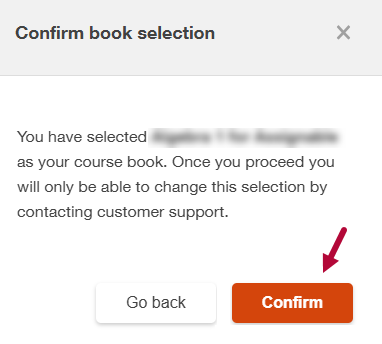
- Confirm that the selected book is correct, then select [Confirm]. If you selected the wrong book, you must contact OpenStax Support to have it changed.
- You can now add any resources or assignments available from the book to within your D2L content module.