Online Services does not have access to your zyBooks account. For integration issues or questions, please contact your zyBooks representative, Tamara Crawford, at tamara.crawford@zybooks.com. For technical support, please contact support@zybooks.com.
This article assumes that your course has already been built in zyBooks. It is highly recommended that you read all steps before performing them.
zyBooks provides interactive online textbooks for a variety of subjects, primarily focused on STEM fields—Science, Technology, Engineering, and Mathematics—and integrates with D2L Brightspace to support course instruction. These materials emphasize active learning through interactive questions and animations that help reinforce key concepts.This article walks you through the steps to add zyBooks to your D2L course.
Getting Your Course Set Up
- Send an email to VTAC@lonestar.edu.
- Include a list of the courses, complete with section numbers and terms, in which you want to use zyBooks.
Adding zyBooks Assignments to a D2L Course
To add your zyBooks assignments to your D2L course, follow the steps below:
NOTE: This process must be completed in each course that will use zyBooks as link copying is not supported for this integration. For questions, please contact your zyBooks representative Tamara Crawford at tamara.crawford@zybooks.com.
- From the Navbar, select [Content].

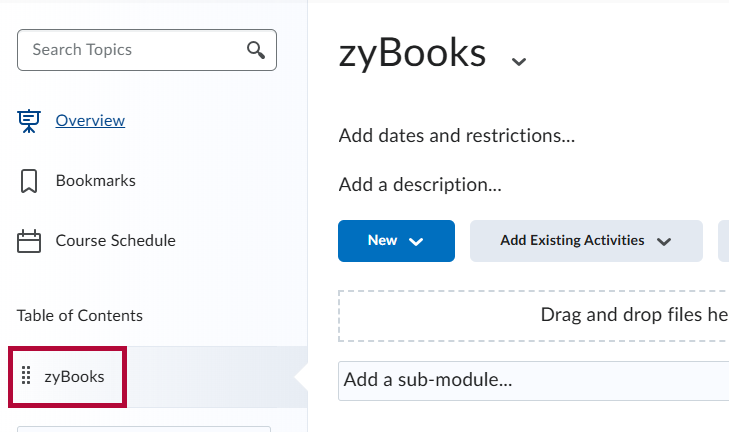
- Select or create the module where you want to insert your zyBooks content. You can name the module zyBooks.
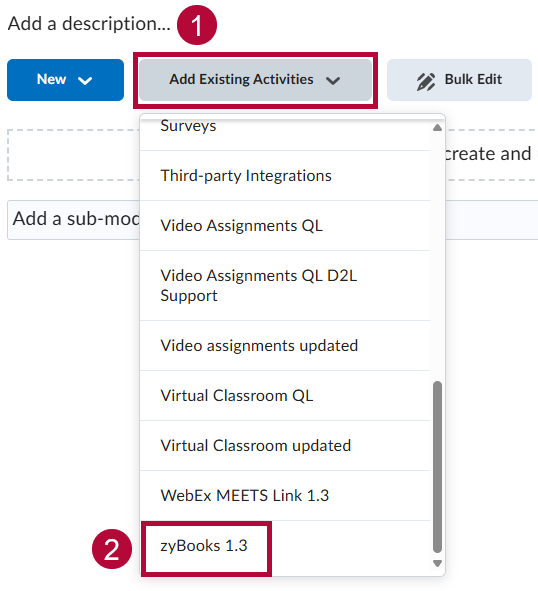
- From the module, select [Add Existing Activities] followed by [zyBooks 1.3].
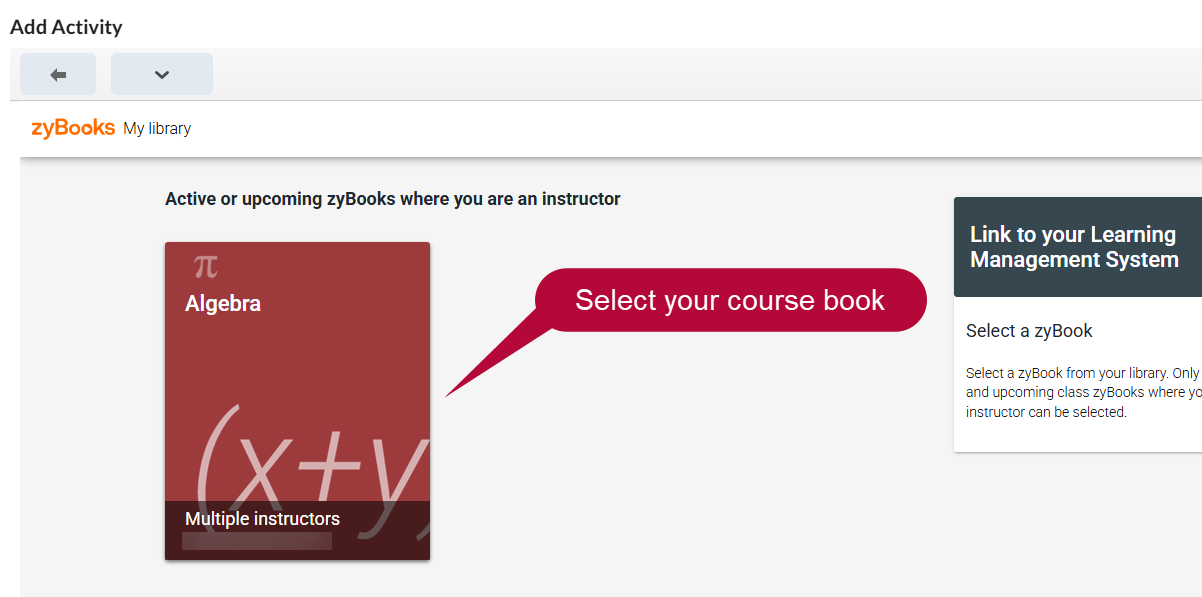
- From the Add Activity window, select your course book from My Library. In this example, we will select the algebra book seen below.
NOTE: During this step, you may be prompted to verify your account through an email confirmation. If you encounter any issues during this step, contact your zyBooks representative Tamara Crawford at tamara.crawford@zybooks.com.
- On the right-hand side, you have the following options:
- Link all assignments using the [Select All Assignments] checkbox on the upper-right.
- Link individual assignments using the [checkboxes] next to each assignment.
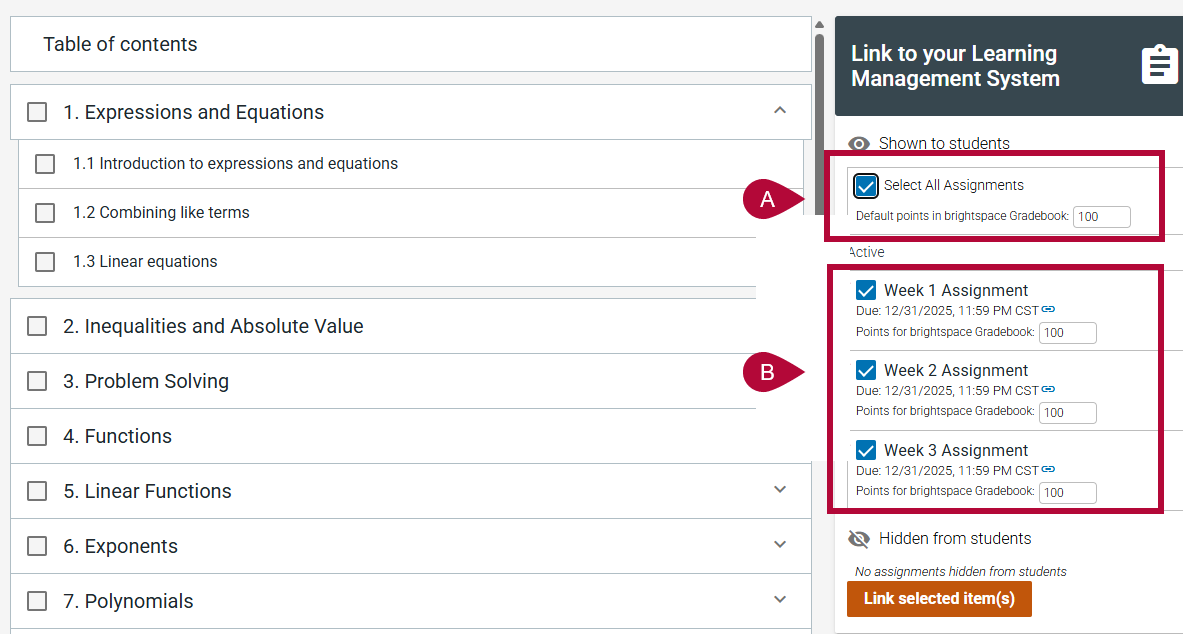
- Enter the number of points each assignment will be worth by entering the appropriate point values into the Points for Brightspace Gradebook boxes, then click [Link selected items(s)].
NOTE: The default point value for assignments is 100 points.
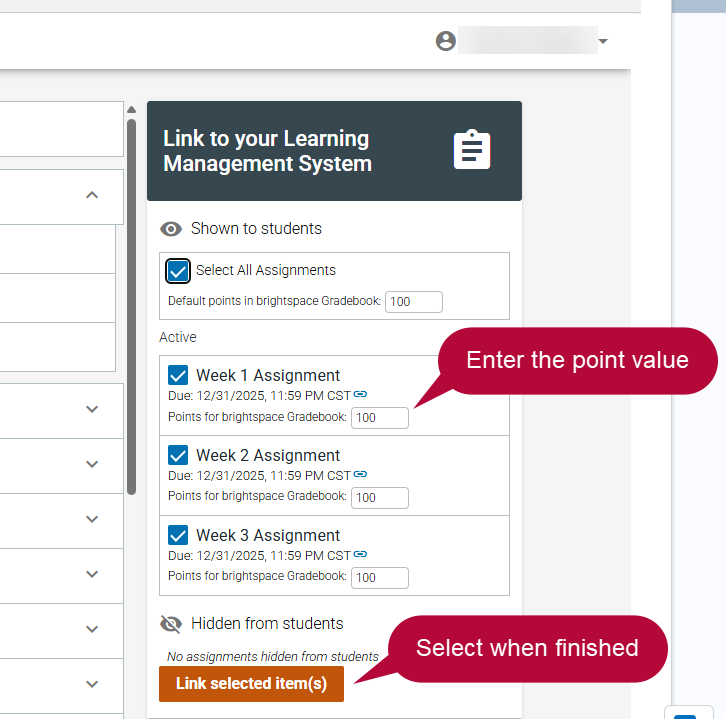
- If you have Assessments in your book, you may also link them by selecting the checkbox next to them, entering the point value, and selecting [Link selected item(s)].

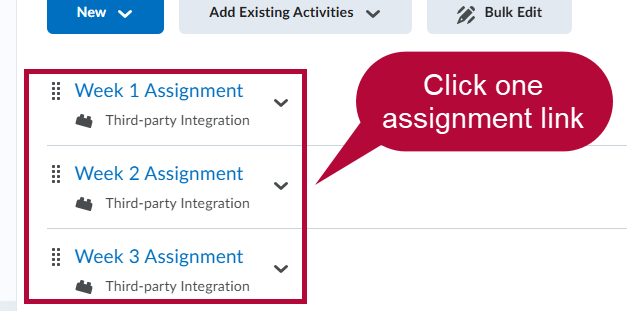
- Your selected assignments will populate into your content module.
NOTE: Each assignment will generate a corresponding grade item in the gradebook. Student grades immediately populate in the D2L gradebook when a student begins a zyBook assignment, and grades will update every time the student answers a question. Grades from zyBooks will only exist in your D2L gradebook, not in zyBooks.
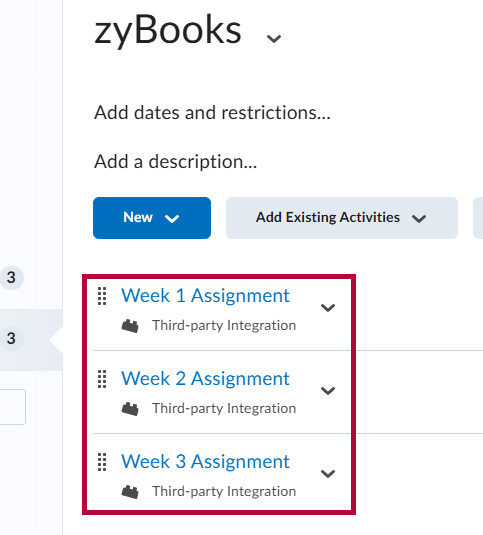
-
To complete the integration process, click on any one of the [Assignment links].
NOTE: If additional assignments are added later, you must click on any one of the [Added assignment links].