
SoftChalk Cloud is a program that allows faculty to easily create professional-looking, interactive lessons to upload into their online classes. SoftChalk Cloud content resides online in a SoftChalk Cloud account rather than being uploaded into D2L. If you decide to host your content in SoftChalk Cloud rather than in D2L, it is highly recommended that you also keep a local copy using SoftChalk Create. Please refer to Getting Started with SoftChalk on how to install and access SoftChalk Create (SoftChalk Desktop App).
NOTE: The previous https://softchalkcloud.com/login link will no longer work, as all SoftChalk content is now under the new domain at https://lonestar.softchalkcloud.com. If you intend to log into SoftChalk directly, please use the new link.
ALERT: If you or your students are experiencing issues accessing SoftChalk through SoftChalk 1.3 links, please follow these browser troubleshooting instructions provided by SoftChalk: When I click on a lesson link that should connect to the SoftChalk ScoreCenter, my lesson is not connecting? What should I do?
Adding a SoftChalk Lesson to Your D2L Course
Once you have created your SoftChalk Cloud lesson and added it to the Score Center if desired, you will need to add the lesson to your content in D2L.
- Navigate to the content module in which you want to place your SoftChalk Lesson.
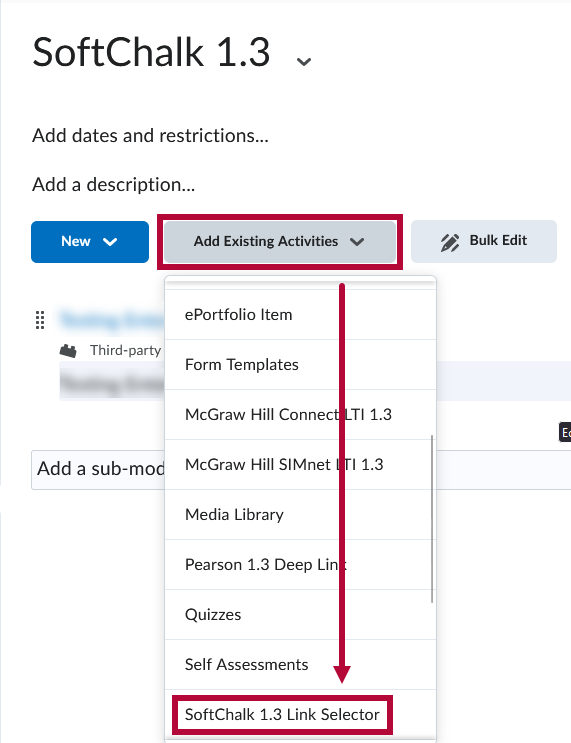
- Click [Add Existing Activities] and choose [SoftChalk 1.3 Link Selector].
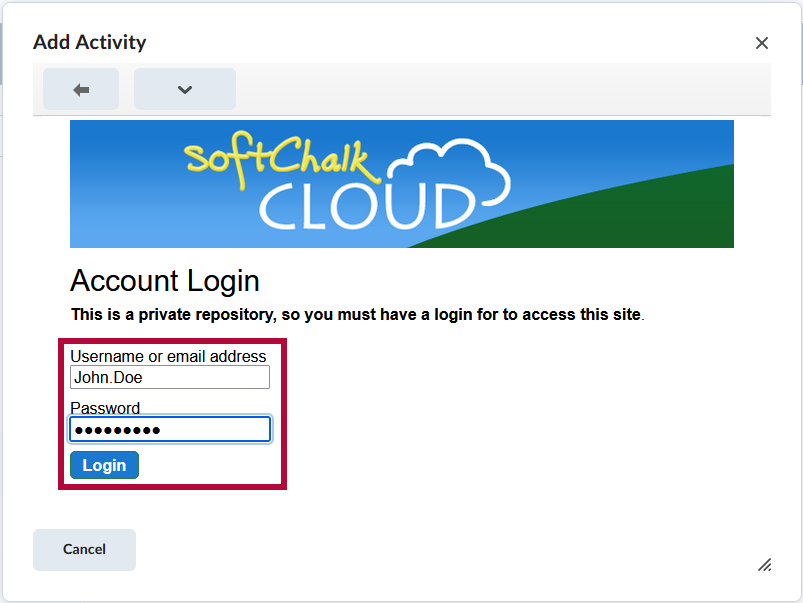
- Your SoftChalk Cloud account will open inside the [Add Existing Activities] window. The first time accessing the new SoftChalk Cloud account through the integration you will be required to enter your credentials. If you are already logged into SoftChalk Cloud outside of D2L, you will need to log out before logging into SoftChalk Cloud through your D2L course.
NOTE: Your username to login is the same as your Employee Email address, excluding @lonestar.edu. Your password is your myLoneStar password. For example, if your Employee Email address was John.Doe@lonestar.edu, your SoftChalk username would be "John.Doe".
- Navigate to the lesson you want to insert and click on it.
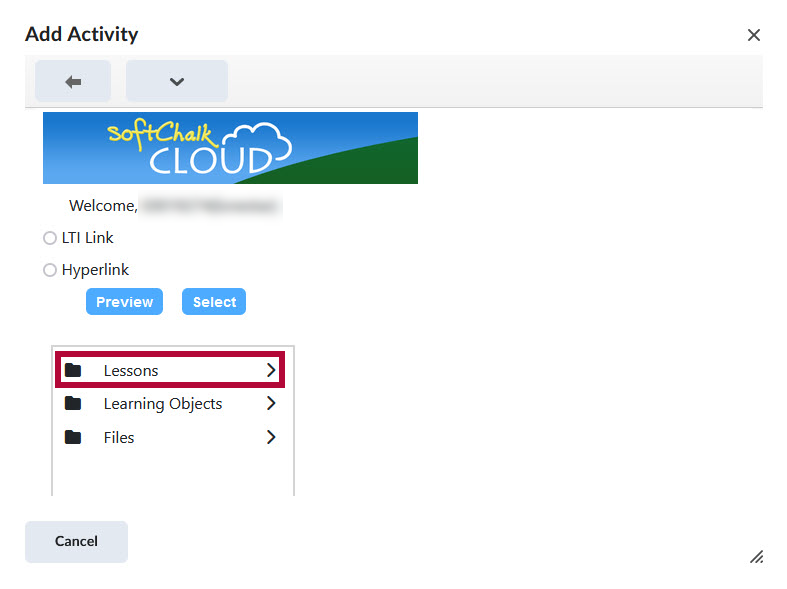
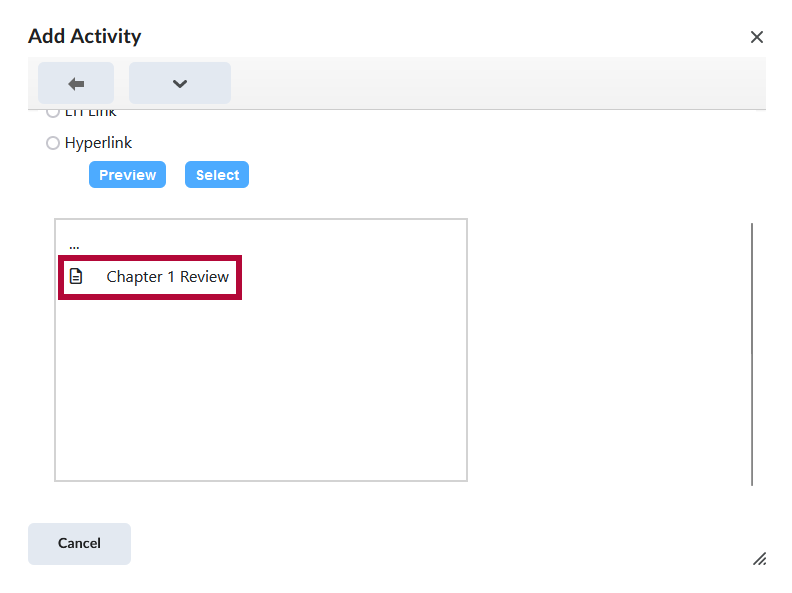
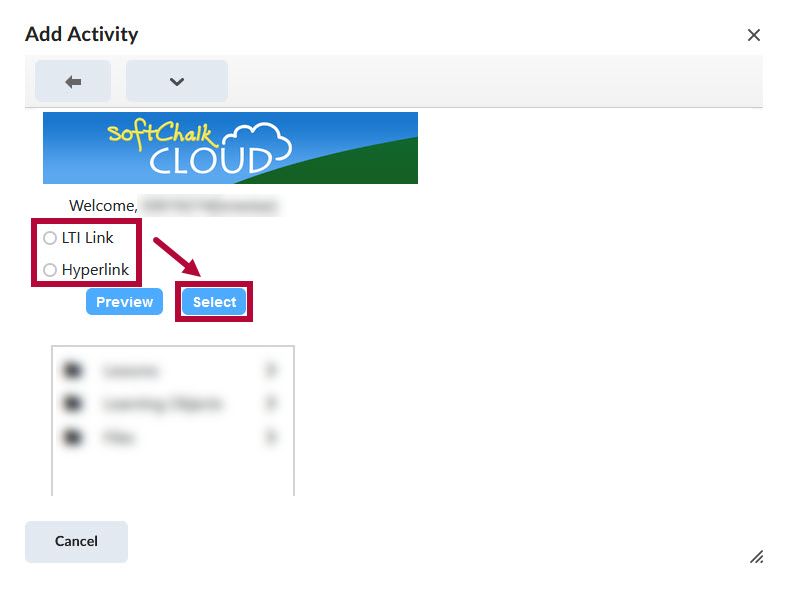
- If you are adding a scored lesson, select [LTI Link] then click [Select].
If you are adding a non-scored lesson, select [Hyperlink] then click [Select].NOTE: For scores from the SoftChalk lesson to be imported to the D2L gradebook, you must set up the SoftChalk lesson in Score Center. Grade items for SoftChalk Score Center lessons will not be created until the first time a student completes the lesson assessment.
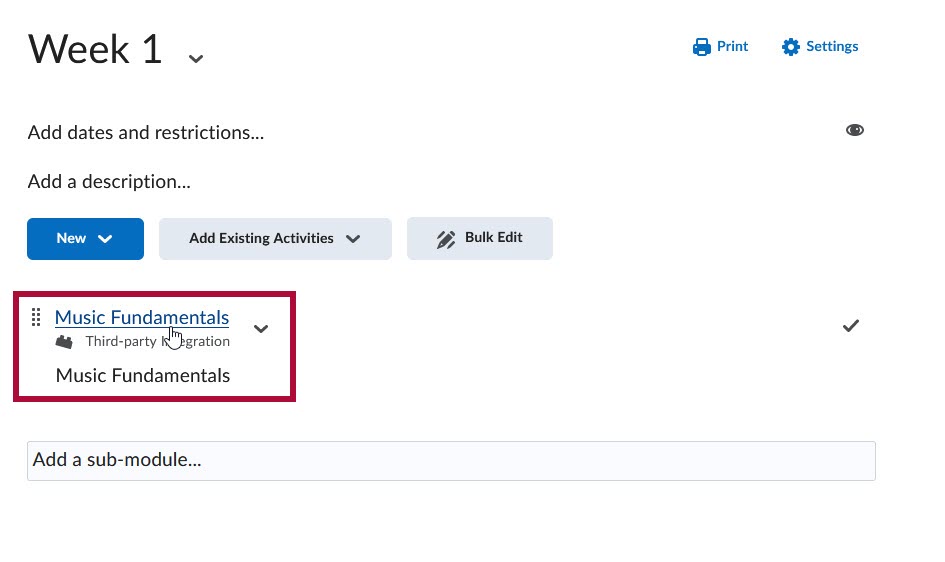
- Your SoftChalk Cloud Lesson is now added to your D2L Content Module.
Updating Existing SoftChalk Links for 1.3
LSC has moved SoftChalk Cloud to a new enterprise environment with unlimited licenses, which utilizes Single Sign-On for easier login. This means all faculty SoftChalk accounts and all existing SoftChalk content has been migrated to this new environment, as of December 19th.
For any SoftChalk links made prior to December 19th, 2023, you need to go through the process of updating your SoftChalk links in D2L courses to reflect the URL for the new environment. Instructions for this process are below.
Updating Hyperlinks
All SoftChalk Cloud hyperlinks will need to have their links edited to match the new URL for the new enterprise environment.
- Find your SoftChalk Cloud Hyperlink in the Content of your course.
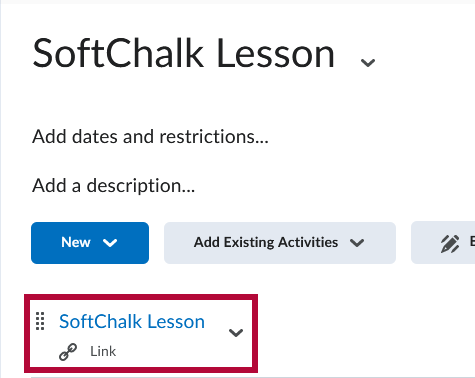
- Click the [dropdown arrow] next to the SoftChalk Cloud hyperlink then select [Edit Link].
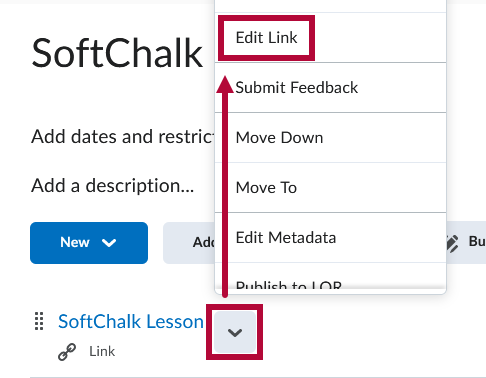
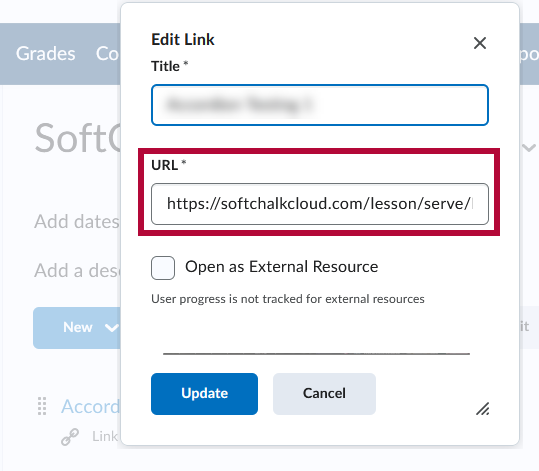
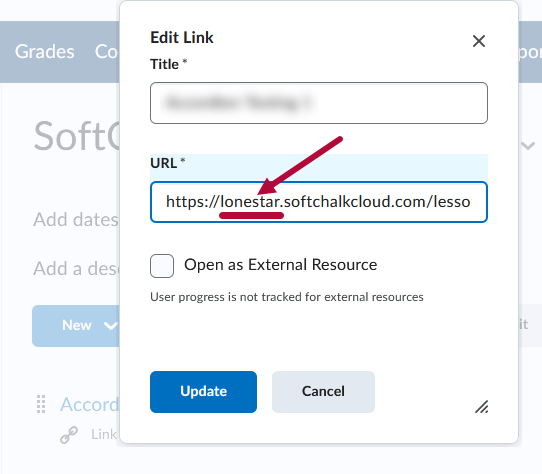
- In the URL field, the URL for your lesson should start with "https://softchalkcloud.com..." — edit it to read "https://lonestar.softchalkcloud.com..." instead. No other changes to the URL need to be made.
Updating LTI Links
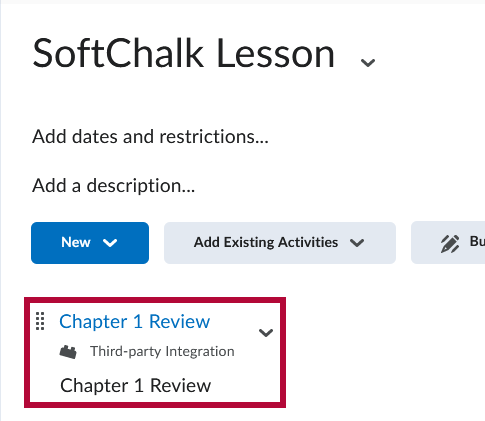
All SoftChalk Cloud LTI links, and any associated Grade Items, will need to be deleted and re-added using the new integration link.
- Find your SoftChalk Cloud LTI link in the Content of your course.
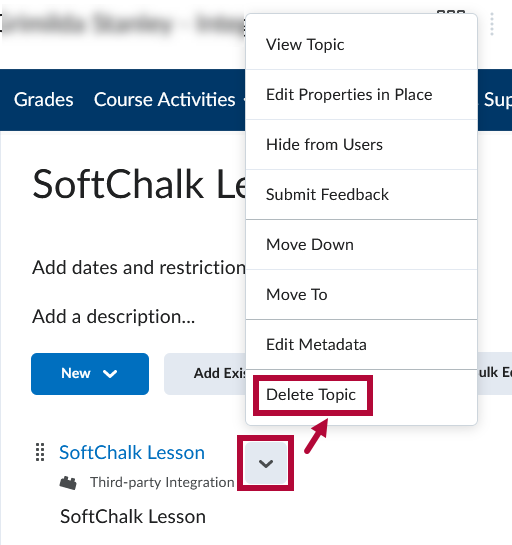
- Click the [dropdown arrow] then select [Delete Topic].
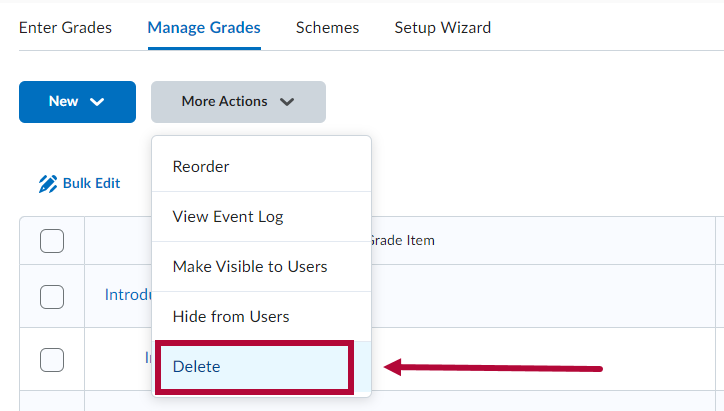
- After deleting the LTI link from Content, delete the Grade Item associated with that content link, if there is one. For instructions on deleting a Grade Item, see Delete a Grade Item.
- Once the LTI link and its associated Grade Item have been deleted, follow the steps above to add the SoftChalk Lesson to Content again using the new version of the LTI link.
Updating SoftChalk LTI Links Copied From a Community Group
To update SoftChalk LTI links (SoftChalk lessons linked to the D2L gradebook) that were copied from a Community Group, first contact the Community Group manager to confirm that the SoftChalk LTI links in the Community Group are updated. You can find the group manager through [Collaboration] then [Classlist]. To update the SoftChalk links, the group manager should follow the instructions in Add a SoftChalk Cloud Lesson to Your D2L Course.
When the Community Group SoftChalk LTI links are updated, follow these instructions:
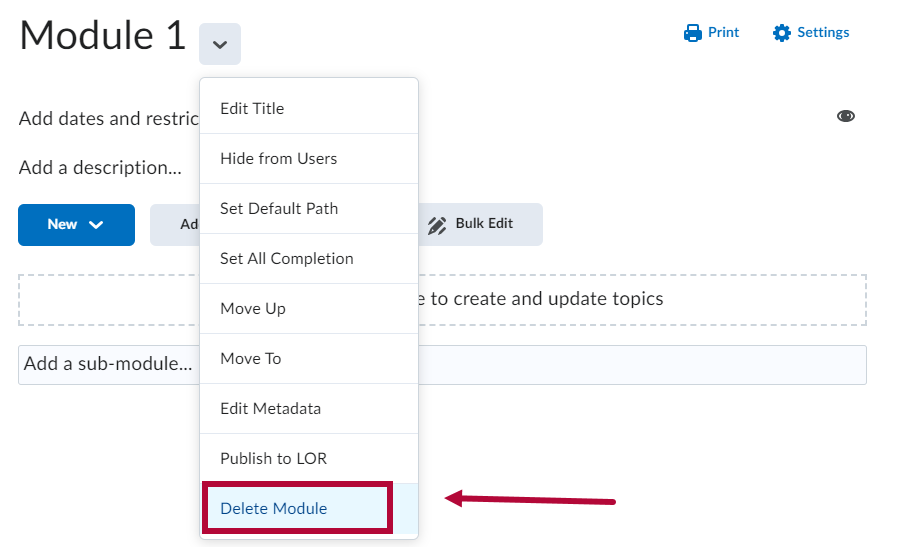
- Delete the old SoftChalk LTI links in Content (see Delete a Module or Topic).
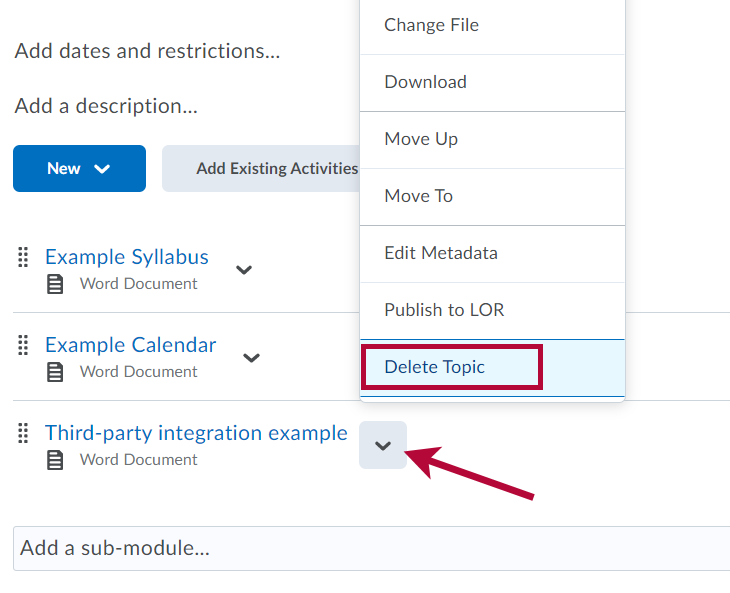
- Delete the related SoftChalk LTI grade items on the Manage Grades page (see Delete a Grade Column).
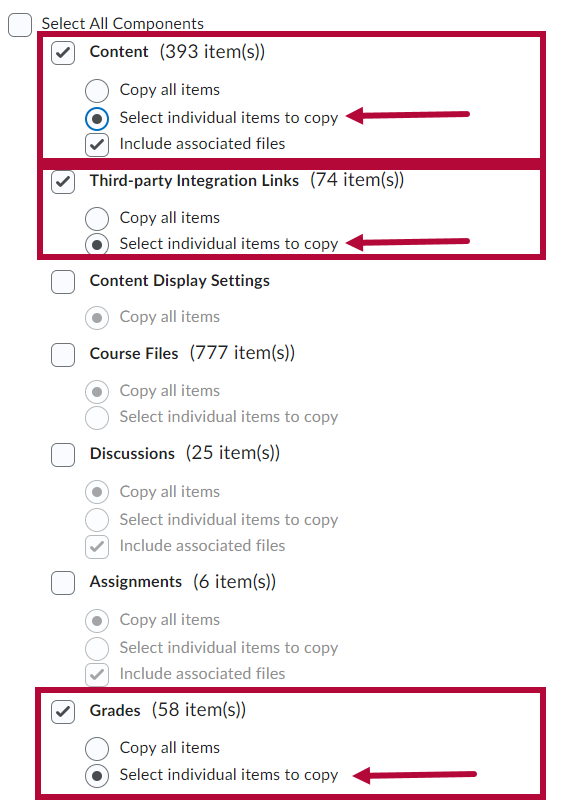
- Copy the selected components listed below (see Copy Course Components Advanced). Select the desired Third-party Integration Links, Content Topics, and Grade Items.
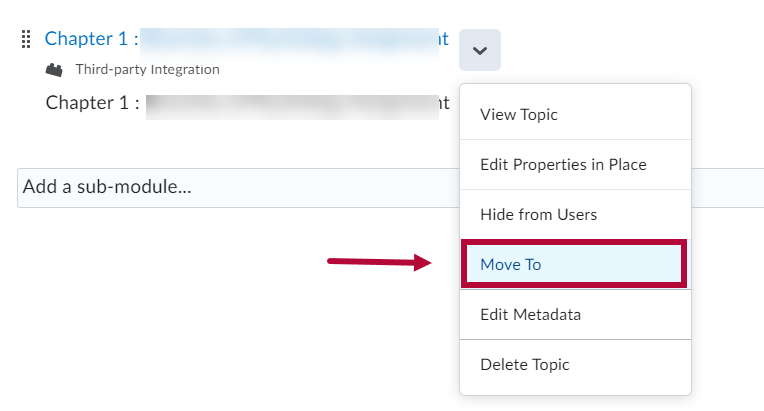
- New Content Modules containing the updated SoftChalk LTI links will be listed at the end of the Content Modules list. Select each SoftChalk lesson and move it to the desired module.
- After moving all the SoftChalk LTI links, the Content Modules previously created will be empty. Delete the empty Content Modules (see Delete a Module or Topic).
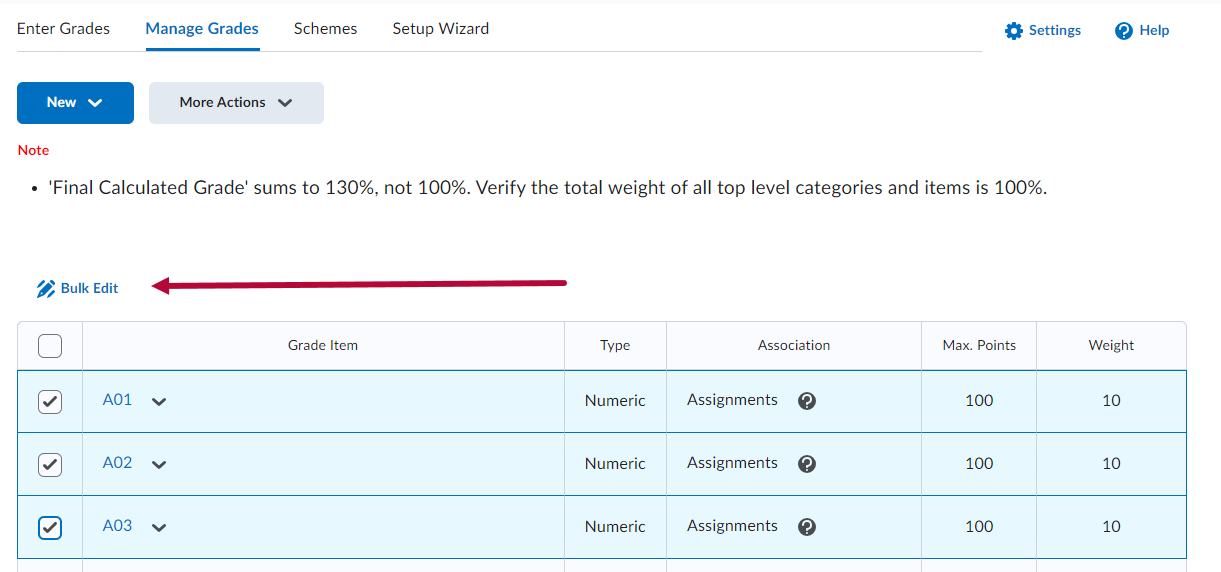
- The grade items created will be listed at the end of the gradebook. Use [Bulk Edit] to move the grade items to the desired grade category on the Manage Grades page (see Bulk Edit Items).
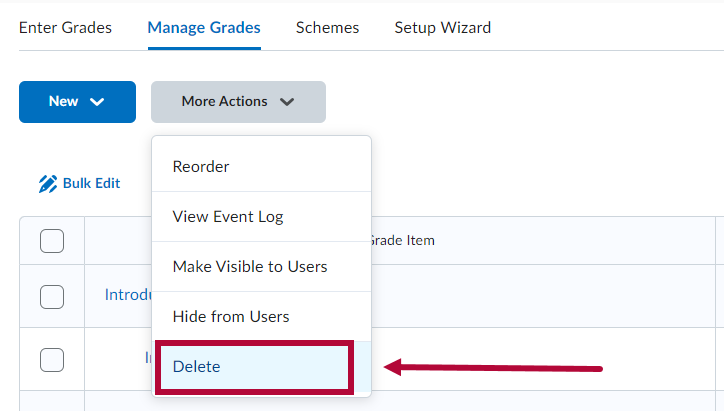
- After moving all the grade items, the grade categories previously created will be empty. Delete the empty grade categories (see Delete a Grade Column).
User Guides and Tutorials
- SoftChalk Training Videos
- SoftChalk User Guides
- On-demand SoftChalk Create Video Tutorials
- Using SoftChalk with D2L Brightspace
Troubleshooting and Support
If you need additional assistance, contact the IT Service Desk at 281.318.HELP (4357).