
Before the proctoring window opens for your students to take their exam through the Virtual Proctoring Center, you will need to prep it for use. To get the most coverage possible, the Center requires LockDown Browser & Monitor to be used on all proctored exams.
Here is a summary of necessary LockDown Browser & Monitor settings that should be used, with detailed stepped below.
- Require LockDown Browser and Respondus Monitor
- Enter a password
- Choose the Webcam + Screen option
- Uncheck Student Photo, Show ID, and Environment check in the Advanced Settings
Access the LockDown Browser Dashboard
Make sure you access the LockDown Browser Dashboard every term, so that it gets activated for that course.
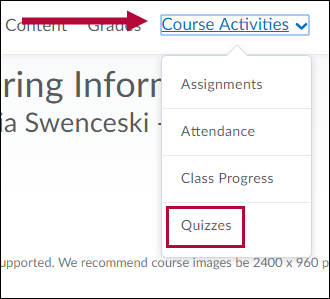
- Go into your course and click [Course Activities] > [Quizzes].
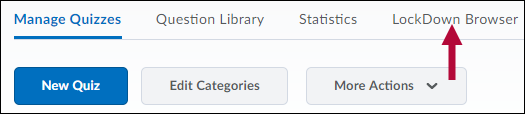
- Click the [LockDown Browser] tab.
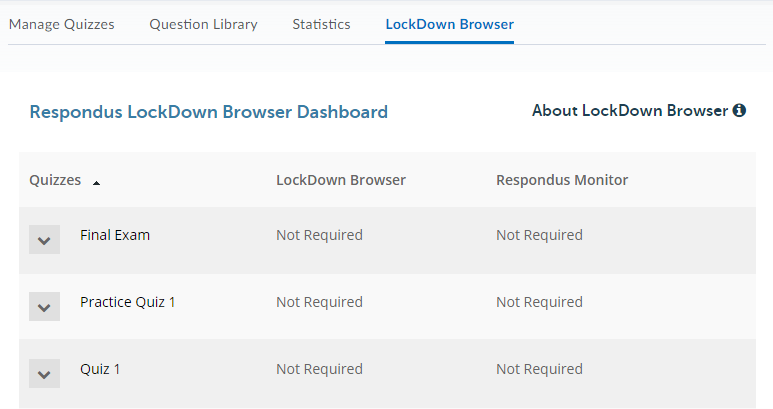
- Select play on the Video Tutorial or click [Continue to LockDown Browser]. If you chose to watch the Video Tutorial, click [Continue to LockDown Browser] when finished. The page that opens lists all the quizzes in your course.
Set Up Your Exam for Proctoring
- After the dashboard is open, find the quiz to modify.
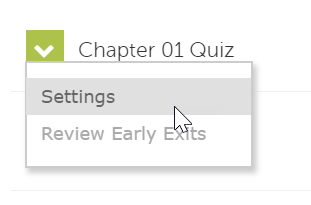
- Click the dropdown arrow in front of the quiz name and select [Settings].
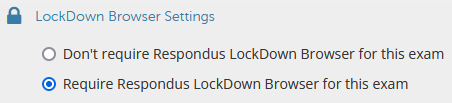
- Under LockDown Browser Settings, select the radio button [Require Respondus LockDown Browser for this exam]. This will expand the basic setting options. Optionally, check the box for [Require LockDown Browser to view feedback and results].
- Under Password Settings, enter a password. While the dashboard says this is optional, it is required for the Online Proctoring Center.

-
Click [ + ] Advanced Settings to expand the LockDown Browser advanced settings menu. Choose desired options.

NOTE: Respondus LDB and Monitor function on both Chromebooks and iPads. Although the option is available for the iPad device for LockDown Browser, it does NOT support the screen recording feature.
- Under Proctoring, select [Require Respondus Monitor (automated proctoring) for this exam] then choose the [Webcam + Screen] option.

- In the Startup Sequence, uncheck the Student Photo, Show ID, and Environment Check options. Those will be handled by the Proctoring Center.

- Click [+] Advanced Settings to expand advanced settings menu and choose your desired options.

NOTE: To enable an iPad to use with Respondus Monitor, select it from [Advanced Settings]. Screen recording is not available for iPad.
- When you are finished, click [Save + Close].


Password Standardization
Faculty should prioritize the length of the password over complexity to ease the exam administration process.
Password Length Example:
- Youdiditthissemester#
- Yougotthis!!
- GoodLuckOnTheExam
- deltagamm@
Faculty should avoid complex or cryptic passwords, leading to delays and increased clarification during exam administration.
Complex or Cryptic Passwords Example:
- I6sp3i*dey2468
- Logarithm$42!Trig@2025