See Connect a Rubric to an Assignment for information on connecting a rubric to your assignment.
You can evaluate a student's assignment submission using a rubric associated with the assignment folder. For each associated rubric, you can grade each student based on set criteria, and you can also provide additional feedback in the text box.
- Click [Course Activities] on the navbar and select Assignments.
- Select the assignment folder and click the submission under the student's name to grade.
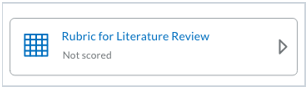
- Click the rubric listed or the [Assess Rubrics] icon under Rubrics to the right of the student's assignment. If you click [Assess Rubrics], the rubrics will open in a popup window.
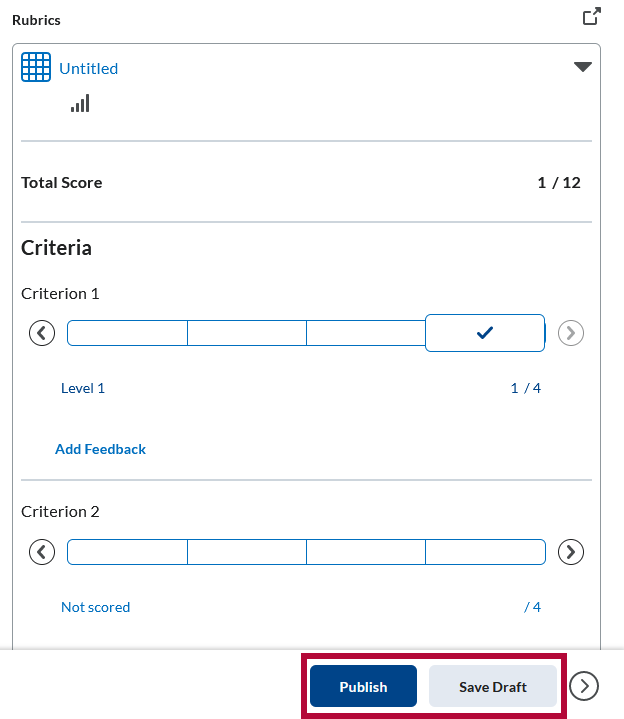
- In either Regular View or Pop-out View, click a criterion for each level. If you want to leave feedback for each criterion, select [Add Feedback] under the criterion description.
- Regular View
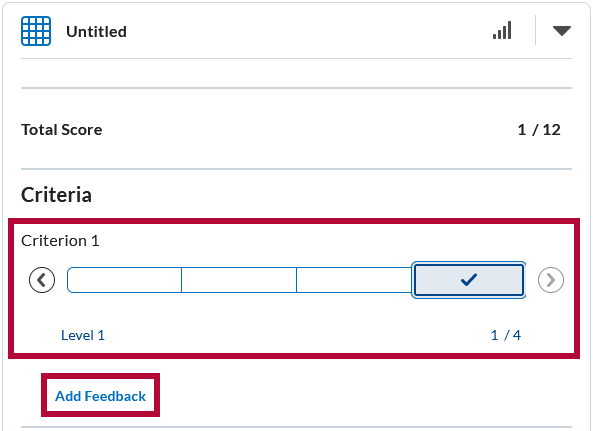
- Pop-out View
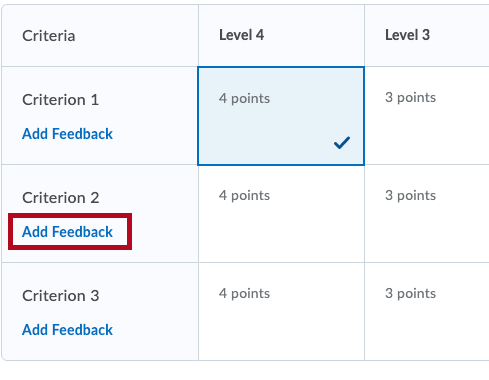
- Regular View
- When you are done with the rubric, select [Close].
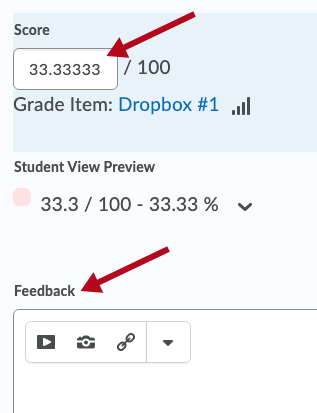
- The score will be transferred from the rubric to the Score field. If you would like to include any general feedback, enter it in the Feedback field.
- Click the [Publish] button if you would like to immediately publish or [Save Draft] if you do not want to publish.
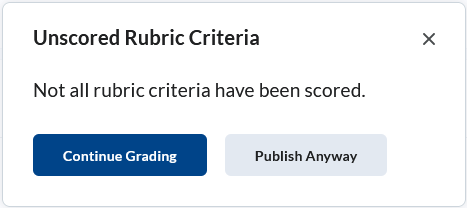
- If you have not scored every criteria in the rubric, you will receive a warning that the rubric is incomplete. You can choose [Continue Grading] to go back and complete the rubric or click [Publish Anyway].