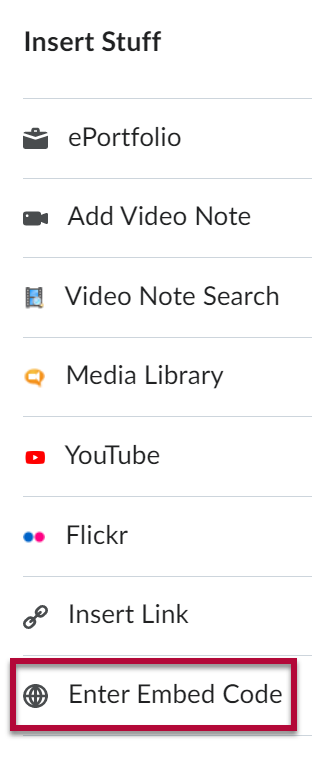
You can add a YouTube video anywhere you find the [Insert Stuff] icon in a WYSIWYG/HTML editor.
- Inside the WYSIWYG/HTML editor (Assignment Submission, Discussion Post, Composing an Email, etc.), click on the [Insert Stuff] icon in the toolbar.

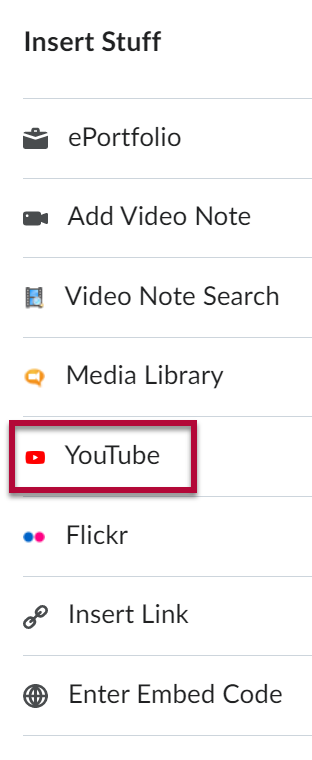
- Select [YouTube] in the Insert Stuff window.
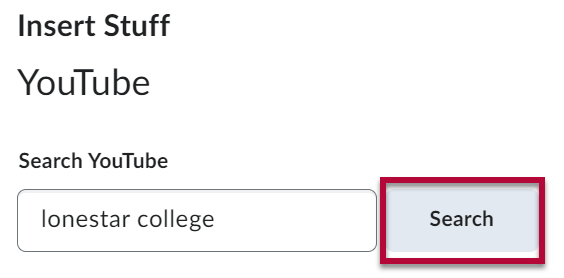
- Enter either the name of the video or key search words to locate the video you wish to insert, then click [Search].
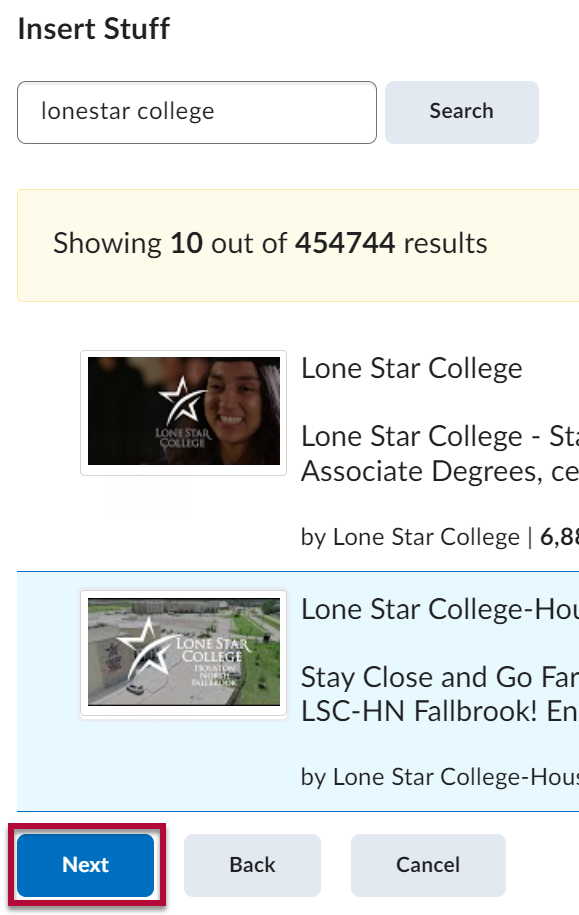
- Select the video you wish to insert from the list and click [Next].
- Click [Insert].
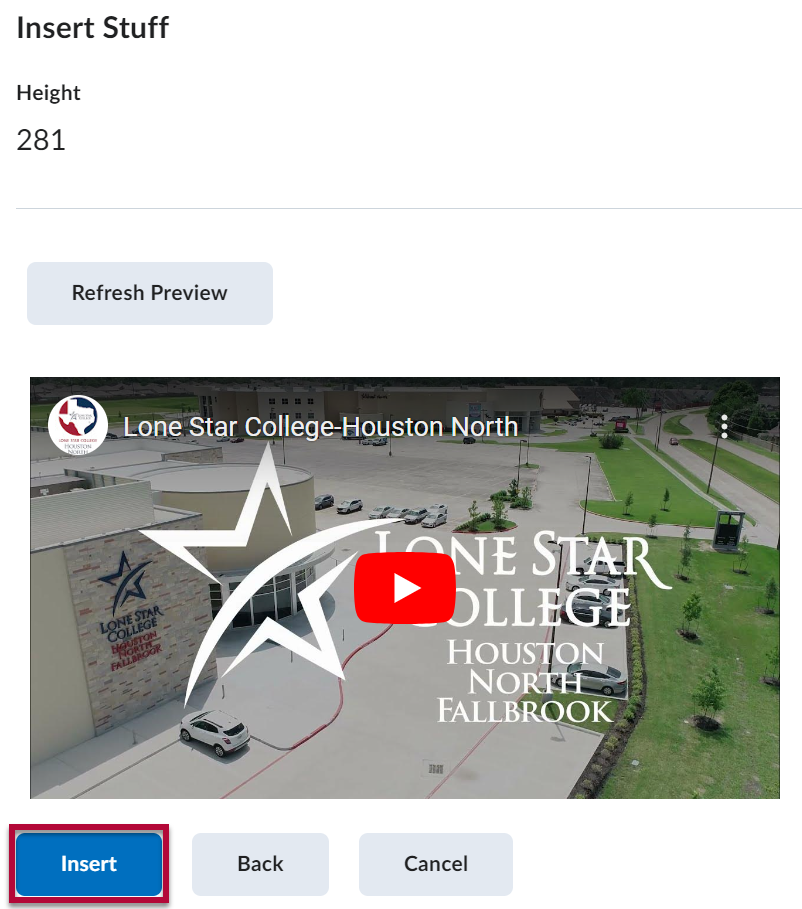
The selected YouTube video will now appear in the WYSIWYG/HTML editor along with your text.
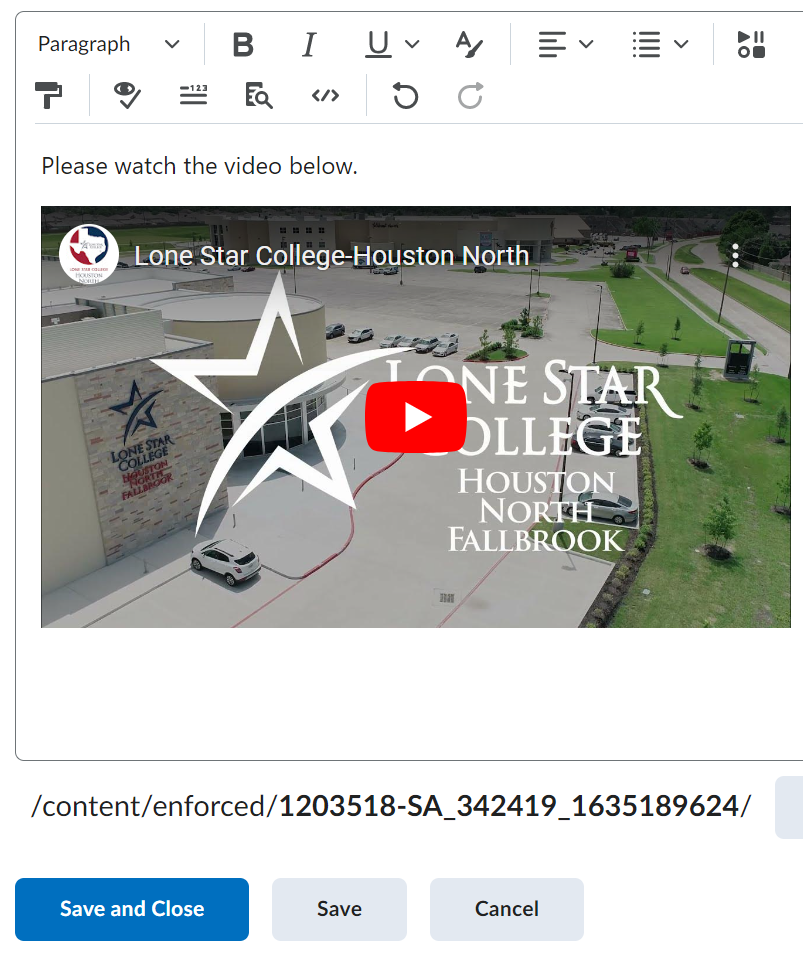
Some videos cannot be embedded. These videos will place a link instead.






If You Cannot Find the Video in Your Search
- If the [Insert Stuff] search box does not find the YouTube video you wish to insert—go to the YouTube website, find the video, and copy its embed code.
- Click the [Insert Stuff] button and click [Enter Embed Code] to insert the video embed code you got from the YouTube website.